Come creare screenshot per il Chrome Web Store della tua estensione
Crea immagini per la scheda della tua estensione Chrome con un titolo, uno sfondo pulito e le dimensioni giuste, senza usare programmi di grafica.
3 min di lettura
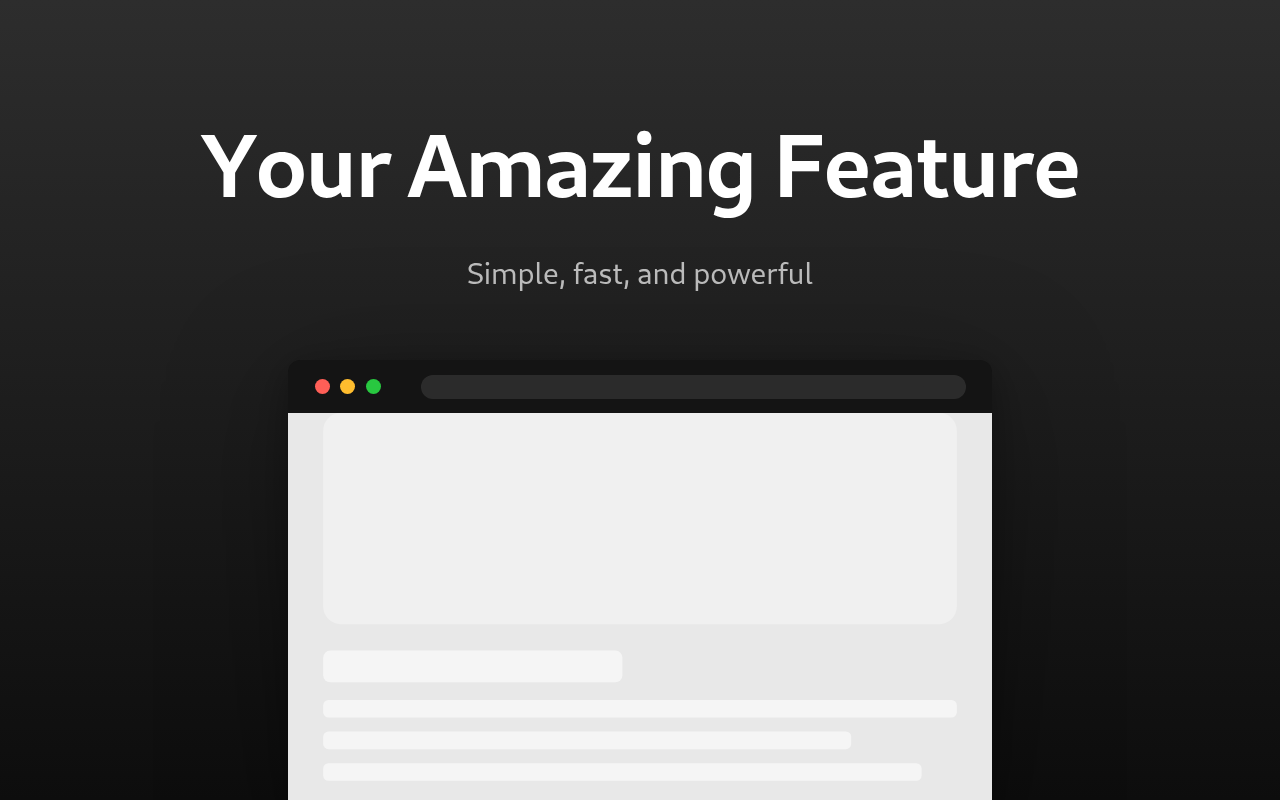
Per creare uno screenshot per il Chrome Web Store, usa il generatore di screenshot per il Chrome Web Store. Carica uno screenshot della tua estensione, aggiungi un titolo e scarica l'immagine in formato PNG. Le dimensioni predefinite sono quelle previste dallo store: 1280 x 800 pixel. L'immagine viene esportata esattamente in questo formato, così puoi caricarla direttamente.
Uno screenshot semplice della tua estensione non basta a convincere le persone a scaricarla. Lo stesso screenshot, con un titolo, uno sfondo colorato e una cornice del browser, sembra un prodotto finito. È questo che puoi creare con lo strumento.
Cosa preparare
- Uno screenshot nitido della tua estensione mentre è in uso. Ritaglialo per mostrare il popup o la pagina, non l'intero desktop.
- Un titolo da tre a cinque parole che descriva il vantaggio principale, ad esempio "Blocca i tracker su ogni sito".
- Un sottotitolo con un dettaglio in più, su una riga.
Se la tua estensione ha diverse funzioni, crea un'immagine per ciascuna.
Come creare un'immagine
- Carica lo screenshot nel campo Screenshot.
- Scrivi il titolo e il sottotitolo. I testi predefiniti sono solo esempi, quindi sostituiscili entrambi.
- Scegli un Layout del modello. Il testo può essere posizionato sopra, sotto, a sinistra o a destra dell'immagine.
- Imposta Cornice dispositivo su Browser per mostrare lo screenshot all'interno di una finestra del browser, oppure su Nessuna per usare l'immagine senza cornice.
- Scegli uno sfondo: un colore uniforme o una sfumatura tra due colori.
- Sposta il cursore Scala screenshot se l'immagine sembra troppo grande o troppo piccola.
- Esporta l'immagine in formato PNG.
Come ottenere un buon risultato
- Mantieni il titolo breve e usa un carattere grande. Nei risultati di ricerca l'immagine è piccola e il testo lungo diventa illeggibile.
- Scegli una sfumatura tra due colori simili. Un forte contrasto tra i colori distoglie l'attenzione dallo screenshot.
- Se usi la cornice del browser, imposta Colore cornice sullo stesso colore dello sfondo. Così la cornice si integra con lo sfondo.
- Usa lo stesso stile per tutte le immagini: stesso sfondo, stesso carattere e stessa dimensione del titolo. In questo modo la scheda avrà un aspetto uniforme.
PNG o JPG
Usa PNG. Mantiene la qualità originale e, a queste dimensioni, il file è piccolo. Usa JPG solo se ti serve un file più leggero per un altro contesto, come un README o un post sui social.
Metti per prima l'immagine più efficace. È la prima che le persone vedranno.
Vuoi provare lo strumento?
Generatore di Screenshot per Chrome Web Store
Crea screenshot professionali per Chrome Web Store con cornici del browser, testo promozionale e sfondi personalizzati per listing di estensioni