How to Convert a PDF to PNG Images
Turn the pages of a PDF into PNG images in your browser, pick the pages and the image size, and download one page or all of them.
Featured tool
Convertitore PDF a PNG
Converti le pagine dei documenti PDF in immagini PNG con impostazioni di scala personalizzabili
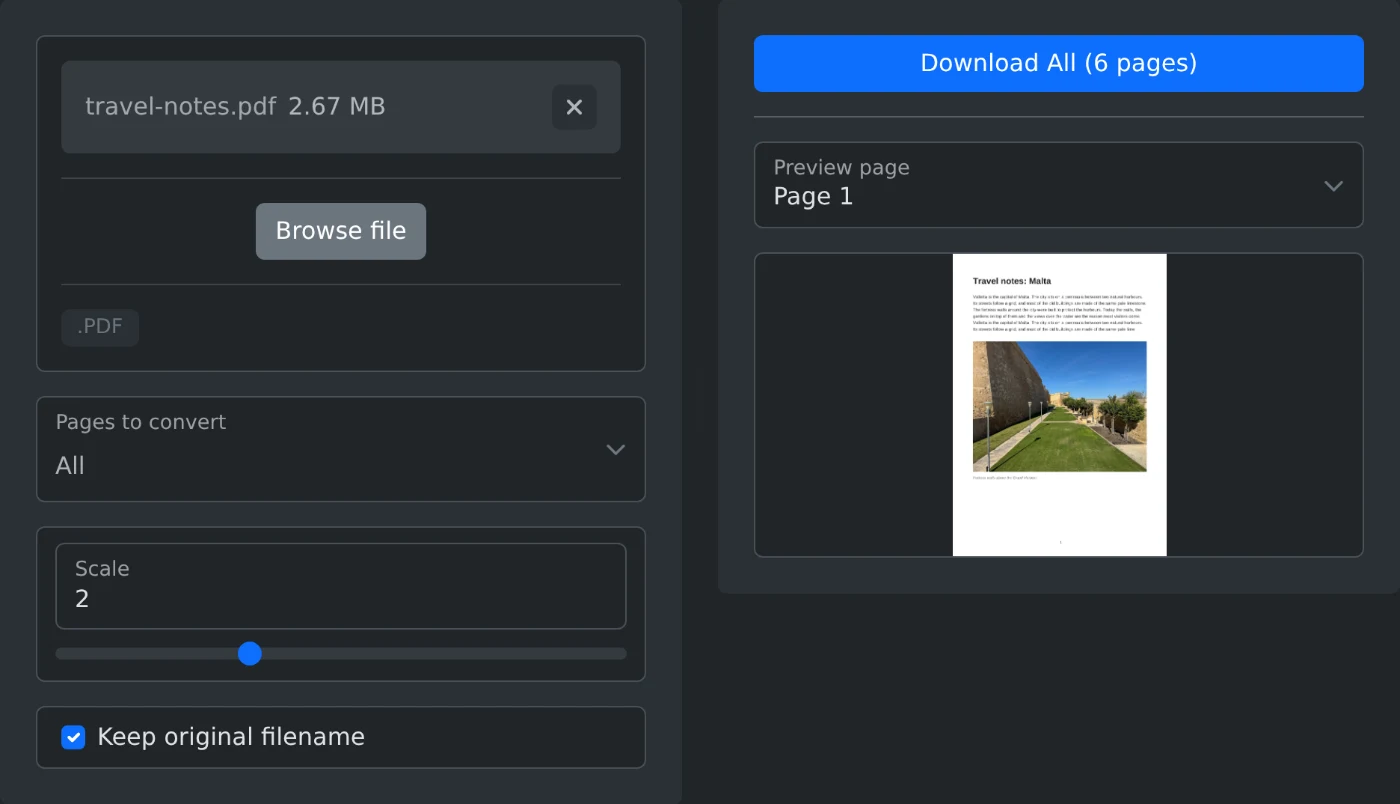
To convert a PDF to PNG images, open the PDF to PNG converter and upload the PDF. Every page is converted right away, and the first page appears in the preview. Click "Download All" to save every page as a PNG file. The file is converted in your browser and is never uploaded.
How to convert the file
- Drop the PDF onto the upload box, or click "Browse file".
- Wait a moment. The pages are converted, and page 1 appears in the preview.
- Under "Pages to convert", pick the pages you need. Leave it on All to convert every page.
- Set the Scale slider. 2 is the default and gives sharp images for most documents. After every change, the images are made again.
- Use "Preview page" to look at any page.
- Click "Download All" to save every page, or Download when you picked a single page. Each page is saved as a separate PNG file.
Which scale to pick
The scale sets the size of the images. Scale 1 gives small images that are fine for a quick preview. Scale 2 doubles the width and height and keeps small text readable. The slider goes up to 5. Go higher than 2 only for pages with very small print, since the files grow fast.
How the files are named
With "Keep original filename" on, the images are named after the PDF, with the page number added, for example report-page-3.png. Turn it off to get names with the date instead.
Before you download
- Convert only the pages you need. It is faster, and you do not have to delete extra images later.
- A PDF with many pages takes longer, and each page becomes a separate image.
- PNG keeps text and lines sharp, so it is the right choice for documents.
Upload, pick the pages, download. The images are ready to drop into a slide or a document.
Ready to try it yourself?
Convertitore PDF a PNG
Converti le pagine dei documenti PDF in immagini PNG con impostazioni di scala personalizzabili