How to Split a PDF into Separate Files
Split a PDF into one file per page, every few pages or by page ranges, see which file each page goes to, and download the parts as a ZIP.
3 min read
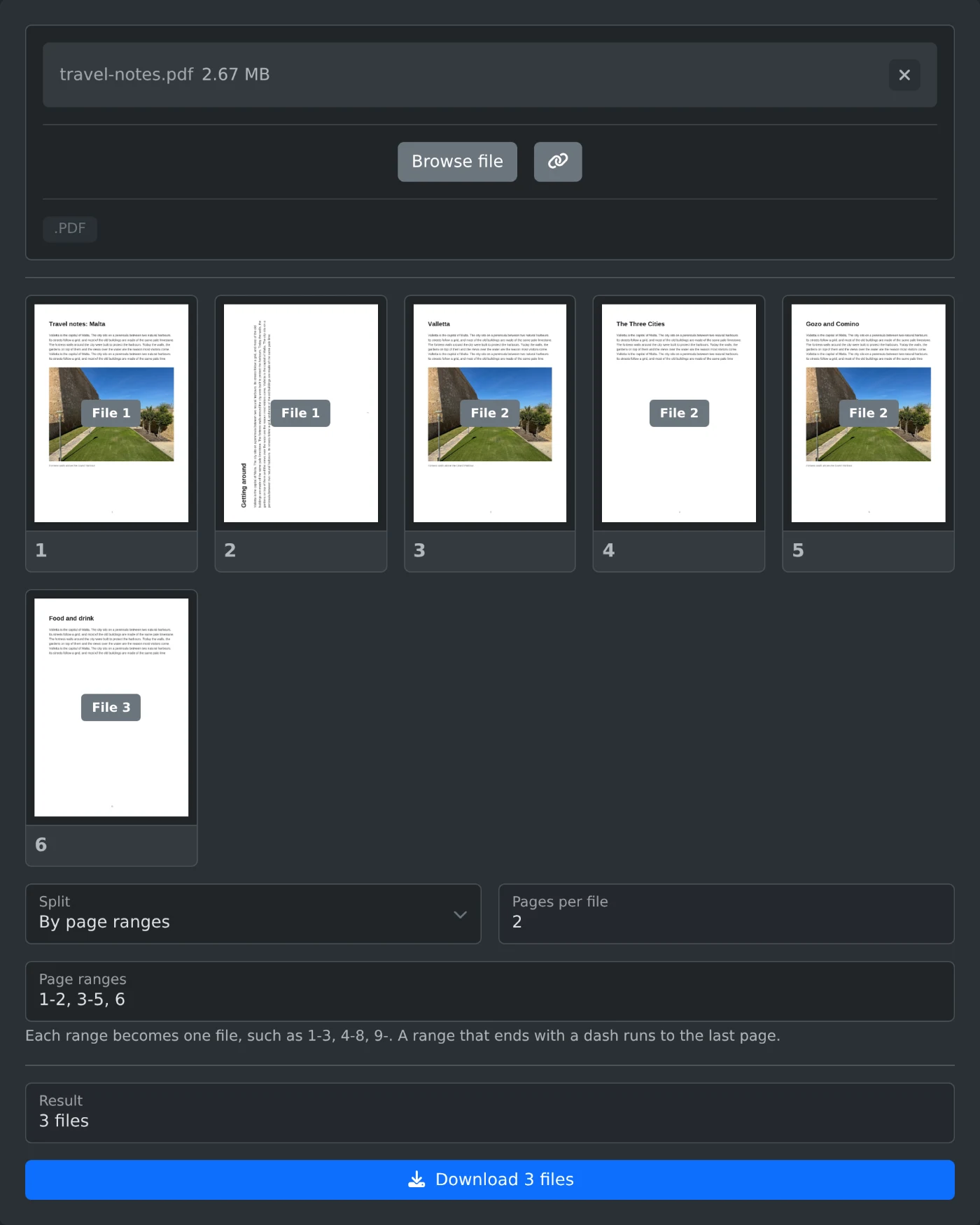
To split a PDF into separate files, open the PDF splitter and upload the file. Choose how to split it under "Split", then click the download button, such as "Download 3 files". Several files come in one ZIP file. The PDF is split in your browser and is never uploaded.
How to split the file
- Drop the PDF onto the upload box, or click "Browse file".
- Wait for the page thumbnails. Click a thumbnail to see the page larger.
- Pick "Every page", "Every few pages" or "By page ranges" under "Split".
- Check the label on each page, such as "File 2", and the count in "Result".
- Click the download button. Its text shows the number of files.
A PDF with a password or restrictions shows an error instead of the thumbnails. Remove them with the PDF password remover first.
Which split mode to pick
- "Every page" puts each page in its own file. It is the default.
- "Every few pages" puts the same number of pages in each file.
- "By page ranges" makes one file from each range you type.
For "Every few pages", set the number in "Pages per file". It starts at 2, so a six page PDF gives three files of two pages. With 4, you get pages 1 to 4 in one file and pages 5 and 6 in the other.
How to type page ranges
Type the ranges into "Page ranges", separated by commas. Each range becomes one file. For a six page travel guide, 1-2, 3-5, 6 gives three files: pages 1 and 2, pages 3 to 5, and page 6. A range that ends with a dash runs to the last page. 3- takes pages 3 to 6.
The files are numbered in the order you type the ranges. 6, 1-2 puts page 6 in the first file. Two ranges can share a page. With 1-3, 3-6, page 3 goes into both files and shows "Files 1, 2".
Pages that are in no range are left out. With 1, 4-5, "Result" shows "2 files, 3 pages left out". A page number past the last page turns the field red. The hint under it then shows the page numbers you can use.
How to save a few pages as one PDF
Pick "By page ranges" and type a single range, such as 3-5. The download is then one PDF instead of a ZIP. For travel-notes.pdf, it is named travel-notes-1.pdf.
What the download contains
- The ZIP is named after your PDF, such as
travel-notes-split.zip. - The files inside are numbered, such as
travel-notes-1.pdfandtravel-notes-2.pdf. - With 10 or more files, the numbers start with a zero, such as
report-01.pdf, so they sort in order. - Each file keeps the title, author and subject of the original PDF.
- Bookmarks are not copied into the new files.
Check the file labels on the thumbnails, then download.
Ready to try it yourself?
PDF Splitter
Split a PDF into several files: one per page, every few pages, or by page ranges such as 1-3, 4-8. See which file each page goes to on the thumbnails, then download the parts as a ZIP file.