How to Make a Kanban Board Online Without Signing Up
Make a free kanban board in your browser with To Do, In Progress and Done columns, add cards, drag them along, and save the board as a file.
3 min read
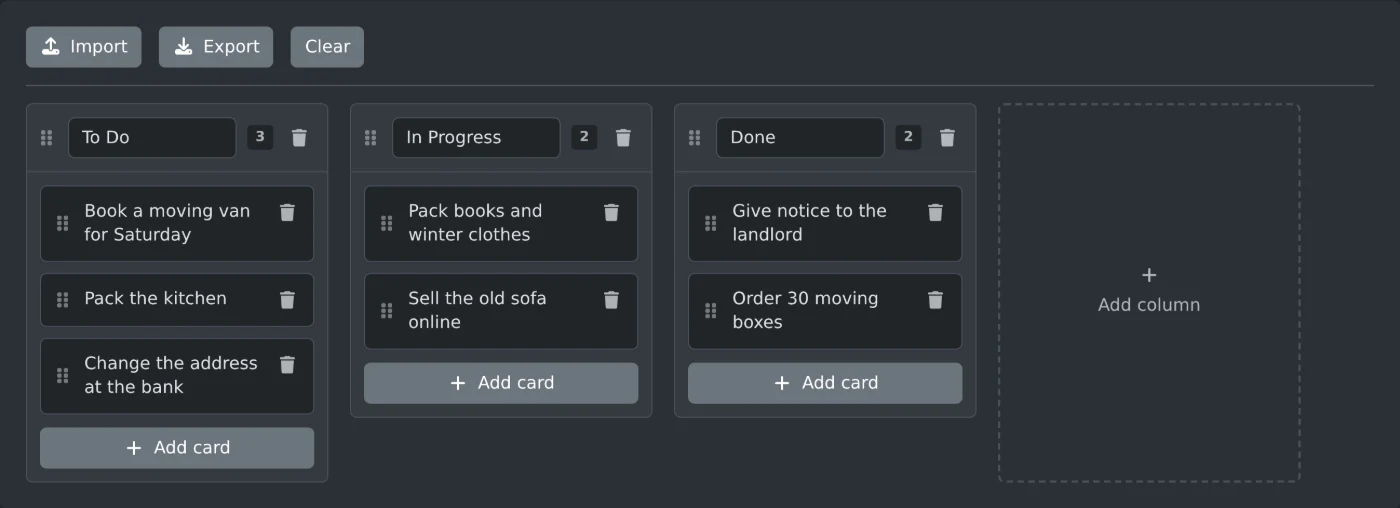
To make a kanban board online, open the kanban board maker. The board starts with three columns: To Do, In Progress and Done. Click "Add card" under a column, type the task and press Enter. Drag the card to the next column when the work moves on. You do not need an account, and the board is saved in your browser as you work.
How to fill the board
- Click the empty card in To Do and type your first task.
- Press Enter to save the text. Shift+Enter starts a new line in the same card.
- Click "Add card" under any column for the next task. The new card opens for typing.
- Click a column title to rename it, such as "Waiting" or "This week".
- Click "Add column" at the right end of the board to add a column, and type its title.
The number next to each column title shows how many cards it holds. An empty column shows "No cards yet". When there are more columns than fit on the screen, scroll the board sideways.
How to move cards and columns
Each card has a grip on its left side. Drag the grip to move the card up or down in its column, or drop it into another column. An empty column also takes a dropped card.
To change the order of the columns, drag a column by its header. Grab the grip or the space around the title, not the title field itself.
The trash button on a card deletes that card. The trash button in a column header deletes the column with all of its cards. Both act at once and do not ask first.
Where the board is saved
Every change is saved in your browser's storage on this device. Close the page, open it again later, and the board is still there. Nothing is sent to a server, so another browser or computer does not see it.
To keep a copy or move the board to another device, click Export. It downloads a JSON file named kanban-board followed by a number, for example kanban-board-1794393600000.json. The file holds the column titles and the card text.
To open that file, click Import and pick it. The imported board replaces the board on the page, so export the current one first if you want to keep it. Any other file shows "That file isn't a valid kanban board export."
To share a board with someone, send them the JSON file. They open it with Import.
How to start over
Click Clear to go back to the three starting columns with one empty card. Clear also replaces the saved board, so click Export first if you might need the old one.
Add your tasks, move each card when its status changes, and export the board when you want a backup.
Ready to try it yourself?
Kanban Board Maker
Create a free online kanban board with drag and drop columns and cards. Rename columns, reorder cards, and import or export your board as JSON.