How to Cut an MP3 or Trim an Audio File Online
Cut the part you need out of an MP3 or other audio file on its waveform, add a fade, and download the result. The file is never uploaded.
3 min read
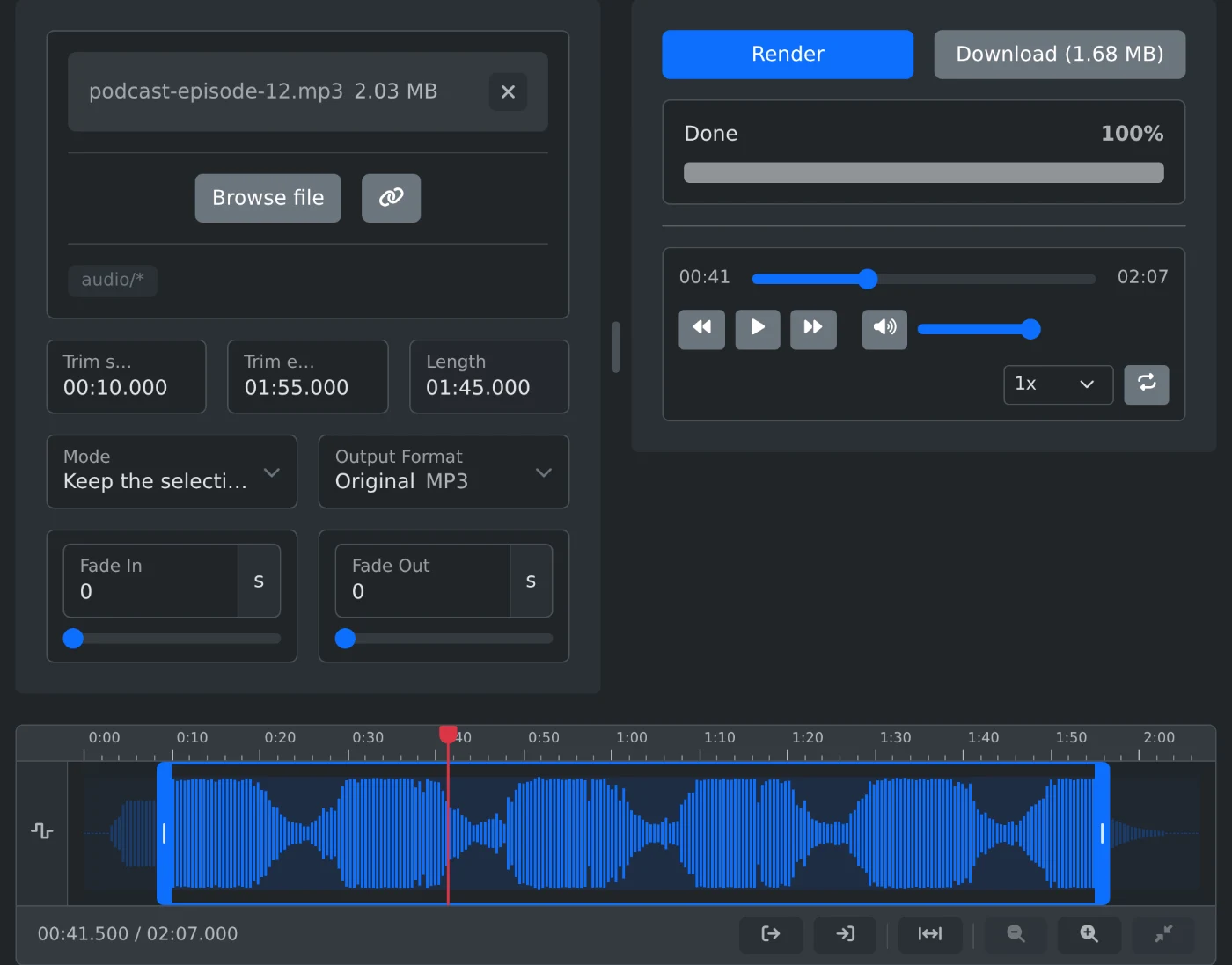
To cut an MP3, open the Audio Cutter and choose the file. Drag the two handles on the waveform to the start and end of the part you want, then click Render. When the bar says Done, click Download. FFmpeg runs in your browser, so the file is never uploaded.
In the example above, a podcast episode of 2:07 loses its intro and outro. The kept part is 1:45 long. The same steps work for M4A, WAV, FLAC, OGG and other audio files your browser can play.
How to trim the audio file
- Click "Browse file" and choose the recording. Its waveform appears in the timeline.
- Drag the start and end handles, or type the times into "Trim start time" and "Trim end time".
- Check the Length field. It shows how long the result will be.
- Click Render. The bar shows "Loading FFmpeg...", then "Rendering audio...".
- Click Download. The button shows the size of the new file.
The file is saved as the original name with -trimmed added, for example podcast-episode-12-trimmed.mp3.
How to place the cut exactly
You can type a time as seconds (95), as mm:ss (1:35) or as hh:mm:ss. Fractions of a second work too, such as 1:35.250. An empty field means the start or the end of the file.
To find the spot by ear, play the file and pause where the cut should be. Then click the first button under the timeline to set the start there, or the second to set the end. To place a cut between two words, zoom in with the zoom buttons. Ctrl (⌘ on a Mac) and the mouse wheel zoom too. The "Play only the selection" button lets you hear the result before you render it.
How to cut a part out of the middle
Change Mode to "Remove the selection". Mark the part you want to delete, such as a mistake or an ad break. The parts before and after it are joined into one file. In this mode the file name gets -cut instead of -trimmed.
How to add a fade or change the format
Fade In and Fade Out go from 0 to 10 seconds each, in steps of 0.1 seconds. Use them when the cut starts or ends in the middle of a sound.
Output Format is Original by default, so an MP3 stays an MP3. You can also pick MP3, M4A, OGG, WAV or FLAC. When you keep one part in the original format with no fade, the audio is copied, so the quality stays the same. A fade, a removed middle part or another format encodes the audio again.
Before you download
- After you change a time or an option, click Render again. Download stays off until the new file is ready.
- Keep the tab open while it renders. You can stop a render with Cancel.
- The first render downloads FFmpeg, about 32 MB. Later renders on the same page start faster.
Mark the part, listen to the selection once, then render and download.
Ready to try it yourself?
Découpeur audio
Réduisez un fichier audio à la partie dont vous avez besoin ou supprimez-en une section sur une ligne temporelle avec sa forme d’onde. Ajoutez des fondus et conservez le format ou convertissez le fichier en MP3, M4A, OGG, WAV ou FLAC, directement dans votre navigateur.