How to Download a Wikipedia Article for Offline Use
Save any Wikipedia article as a PDF, Markdown, or plain text file in a few clicks, without the edit links and footnote numbers.
2 min read
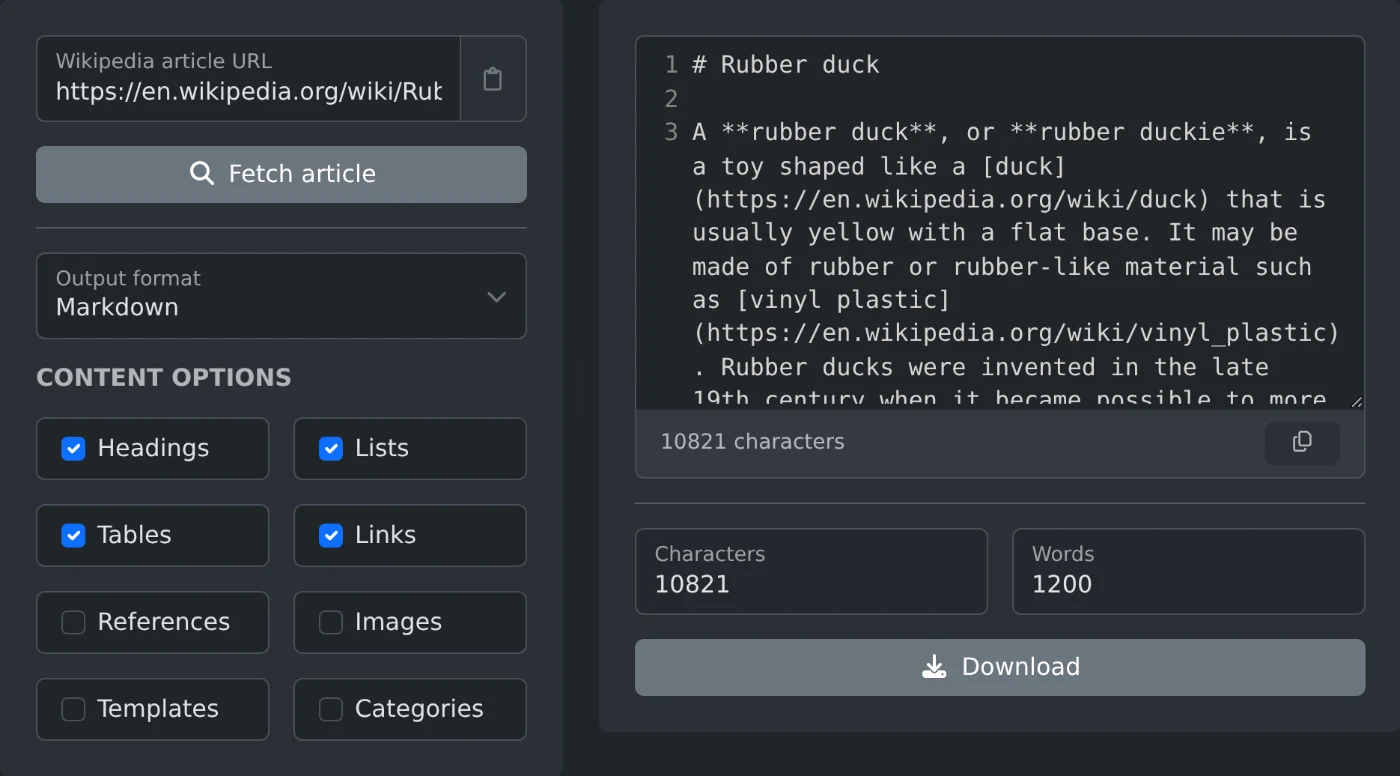
Paste a Wikipedia article URL and get the page content as clean plain text, Markdown, HTML, raw wikitext, or a parsed syntax tree.
A Wikipedia article extractor pulls the content of a Wikipedia page and converts it into a clean, structured format that's easier to reuse than the original wiki page - whether that's plain text for reading offline, Markdown for notes and documentation, HTML for embedding, or the raw wikitext markup used internally by MediaWiki. This is useful for researchers, writers, and developers who need article content outside of a browser, without unrelated page chrome like navigation menus, ads, or edit links.
This tool fetches a Wikipedia article directly from its URL and extracts its content into your choice of six formats: plain text, Markdown, HTML, raw wikitext, an AST (JSON) representation of the parsed structure, or a downloadable PDF. You can fine-tune what's included - headings, lists, tables, links, references, images, templates, and categories - then copy the result or download it as a file.
.txt, .md, .html, .wiki, .json, or .pdf)https://en.wikipedia.org/wiki/DogWhich Wikipedia language editions are supported?
Any Wikipedia language edition is supported - just paste the article URL from that language's subdomain (e.g. de.wikipedia.org, ja.wikipedia.org).
Why is a link or template missing from my output? Check the content options - links, templates, categories, images, and references are each individually toggleable and some are turned off by default.
Does this tool modify or save the Wikipedia article? No - it only reads the article's public content for extraction and display. Nothing is uploaded to or stored on Wikipedia.
Can I get the exact original wiki markup? Yes - select "Raw wikitext" as the output format to see the unmodified source markup exactly as stored on Wikipedia.
Save any Wikipedia article as a PDF, Markdown, or plain text file in a few clicks, without the edit links and footnote numbers.
2 min read