How to Move Passwords to Another Password Manager
Convert a password export from 1Password, LastPass, Chrome, KeePass, and others into the format your new password manager imports. Nothing is uploaded.
2 min read
Convert a NordPass CSV export to Firefox CSV to move your passwords to another password manager, right in your browser without uploading anything.
Every password manager can export your logins to a file, and most can import a file from the big names. The catch is that each one writes and expects its own columns, so a LastPass export won't always go into Bitwarden or KeePass cleanly. This converter rewrites the export in the format the new manager imports best.
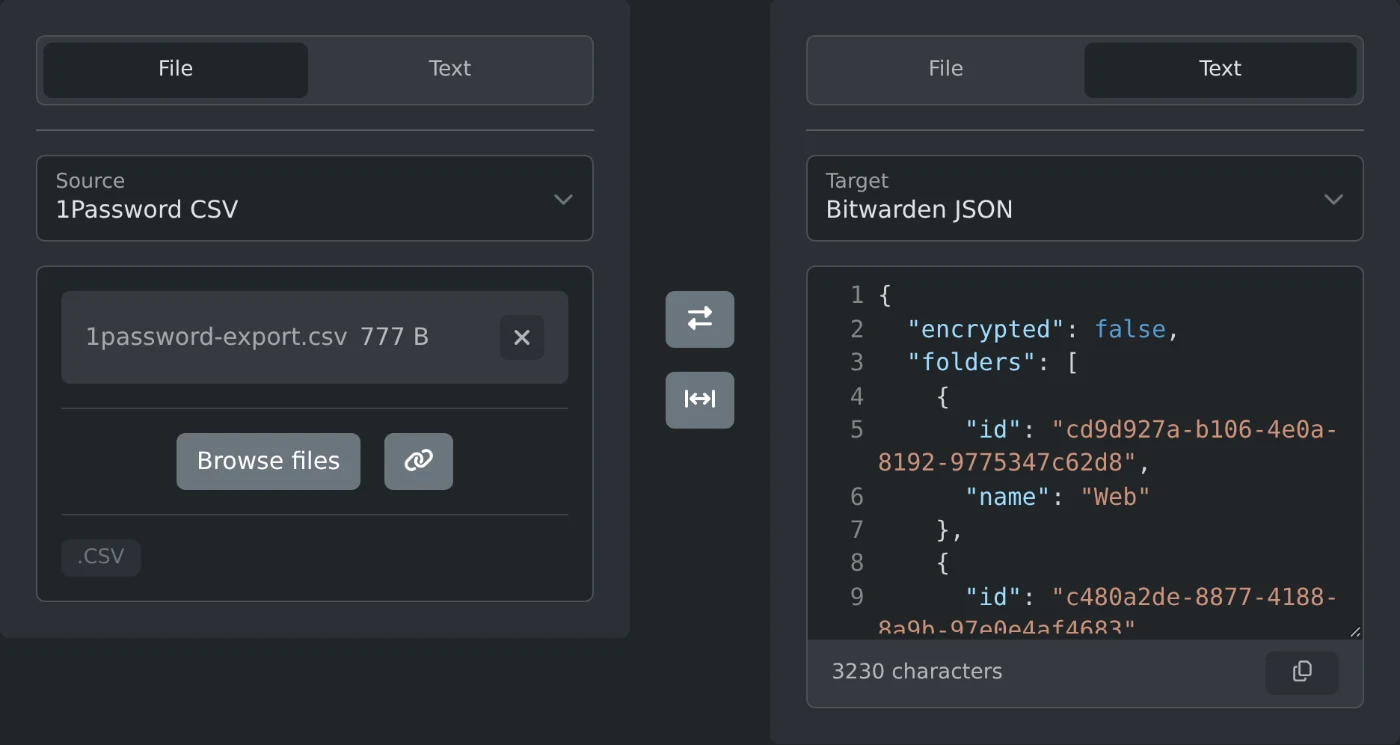
This tool converts password exports between 16 formats. Every password manager converter here works the same way, from the general Password Manager Converter to the ones for a single pair, such as 1Password CSV to Bitwarden JSON or LastPass CSV to KeePass XML: it starts on the formats in its name, and the Source and Target menus switch to any other.
Drop your export on the source side and download the converted file from the target side. The converter reads a file as the export it really is, whichever source is picked, so a Chrome CSV dropped on the LastPass converter still converts. You can also paste the text of a CSV, JSON, or XML export on the Text tab, and see or copy the result as text.
Your passwords are converted in your browser and never uploaded. Delete the export files when you're done, since anyone who opens them can read every password.
It reads and writes the exports of 1Password (CSV), Bitwarden (JSON and CSV), LastPass, Dashlane, KeePass (XML), KeePassXC, Proton Pass, NordPass, Keeper, and RoboForm, and the password exports of Chrome, Firefox, and Apple Passwords. Chrome CSV also covers Google Password Manager, Edge, Brave, Opera, and other Chromium browsers, and Apple Passwords CSV covers Safari and iCloud Keychain. It can also read 1Password's 1PUX archive and Enpass JSON, but not write them. For Dashlane, use the credentials.csv file from its export.
Titles, usernames, passwords, websites, and notes go everywhere except Firefox, which keeps no notes. Folders become folders, groups, tags, or vaults, depending on what the target has. One time password (TOTP) secrets go to the target's own field, or into the notes for Chrome, NordPass, and RoboForm, which have none. Custom fields stay custom fields in Bitwarden, KeePass, NordPass, and Keeper, and become lines in the notes elsewhere, so nothing is dropped silently.
Attachments, passkeys, and password history don't come along. Exports protected by a password, such as an encrypted Bitwarden JSON file, need to be exported again without one. The Password Manager File Viewer can open those, along with KeePass KDBX databases.
This LastPass CSV:
url,username,password,totp,extra,name,grouping,fav
https://github.com,octocat,hunter2,JBSWY3DPEHPK3PXP,Work account,GitHub,Work\Dev,0
becomes this Bitwarden CSV:
folder,favorite,type,name,notes,fields,reprompt,login_uri,login_username,login_password,login_totp
Work/Dev,,login,GitHub,Work account,,0,https://github.com,octocat,hunter2,JBSWY3DPEHPK3PXPConvert a password export from 1Password, LastPass, Chrome, KeePass, and others into the format your new password manager imports. Nothing is uploaded.
2 min read