How to Turn a Photo Into Pixel Art With an 8 Bit Look
Convert a photo into pixel art in your browser. Choose the block size and the number of colors, then download the result as a PNG. Nothing is uploaded.
3 min read
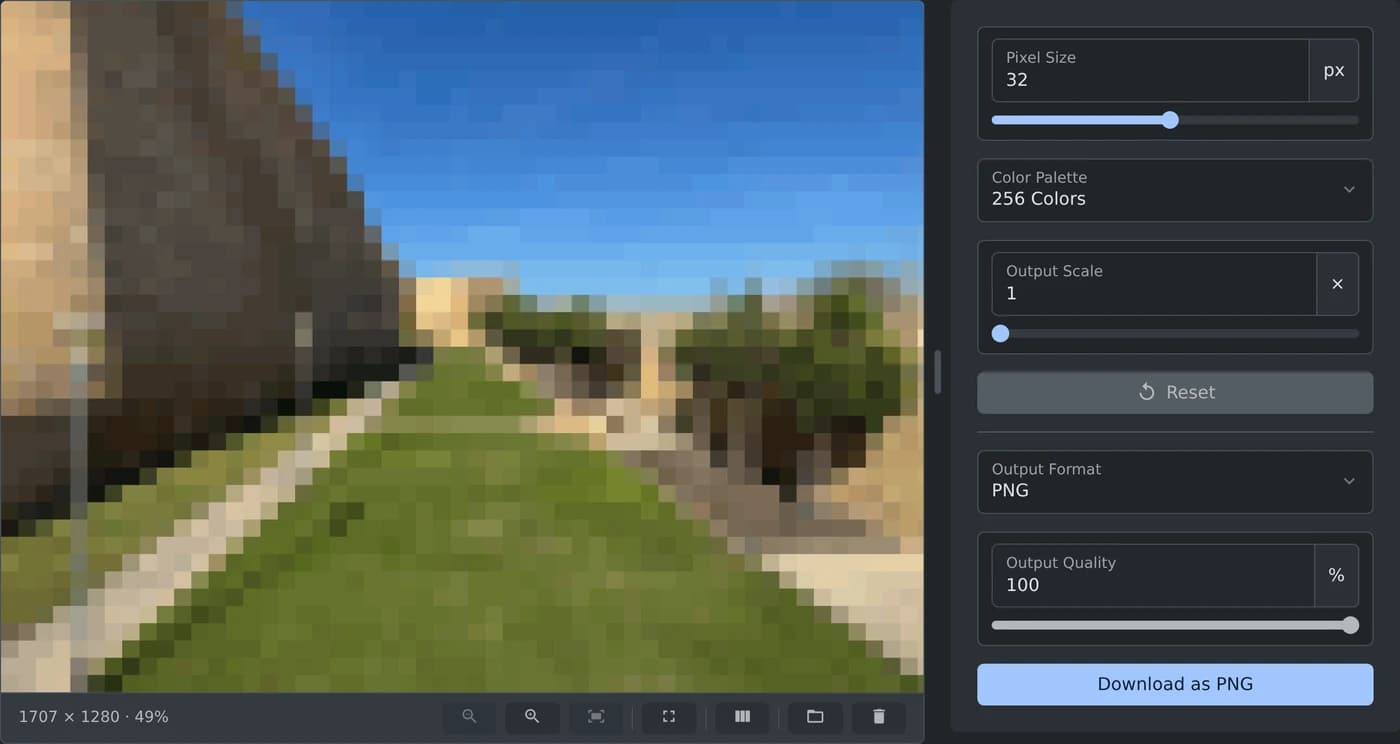
To turn a photo into pixel art, open the pixel art generator and add your photo. It turns into square blocks at once, with 32 px blocks and up to 256 colors. Change "Pixel Size" and "Color Palette" until you like the look, then click "Download as PNG". The photo is processed in your browser and is never uploaded.
How to make pixel art from a photo
- Click "Browse file" or drop the photo on the box. You can also paste a copied image. JPG, PNG, WebP, GIF, BMP and AVIF files work.
- Wait a moment for the preview. There is no Apply button, and the preview changes as soon as you change a setting.
- Move the "Pixel Size" slider to make the blocks larger or smaller.
- Pick the number of colors under "Color Palette".
- Click "Download as PNG".
At the default "Output Scale" of 1×, the download has the same width and height as your photo. Its name ends in -pixel-art, so gozo-citadel.jpg is saved as gozo-citadel-pixel-art.png.
How to choose the block size
"Pixel Size" is the width and height of one block, counted in pixels of your photo. A small value keeps more detail. A large value gives fewer, bigger blocks and a simpler picture.
The same value gives more blocks on a larger photo. The photo in the picture above is 1707 pixels wide, so the default 32 px makes 54 blocks across. For a small photo, start with a smaller value.
Type a value in the field or move the slider. Double click the slider to go back to 32 px. "Reset" puts the block size, the colors and the scale back to their defaults.
How to get an 8 bit look
Pick "16 Colors" or "8 Colors" under "Color Palette". Large areas such as the sky then turn into a few flat bands of color. Raise "Pixel Size" too if you want fewer, bigger blocks.
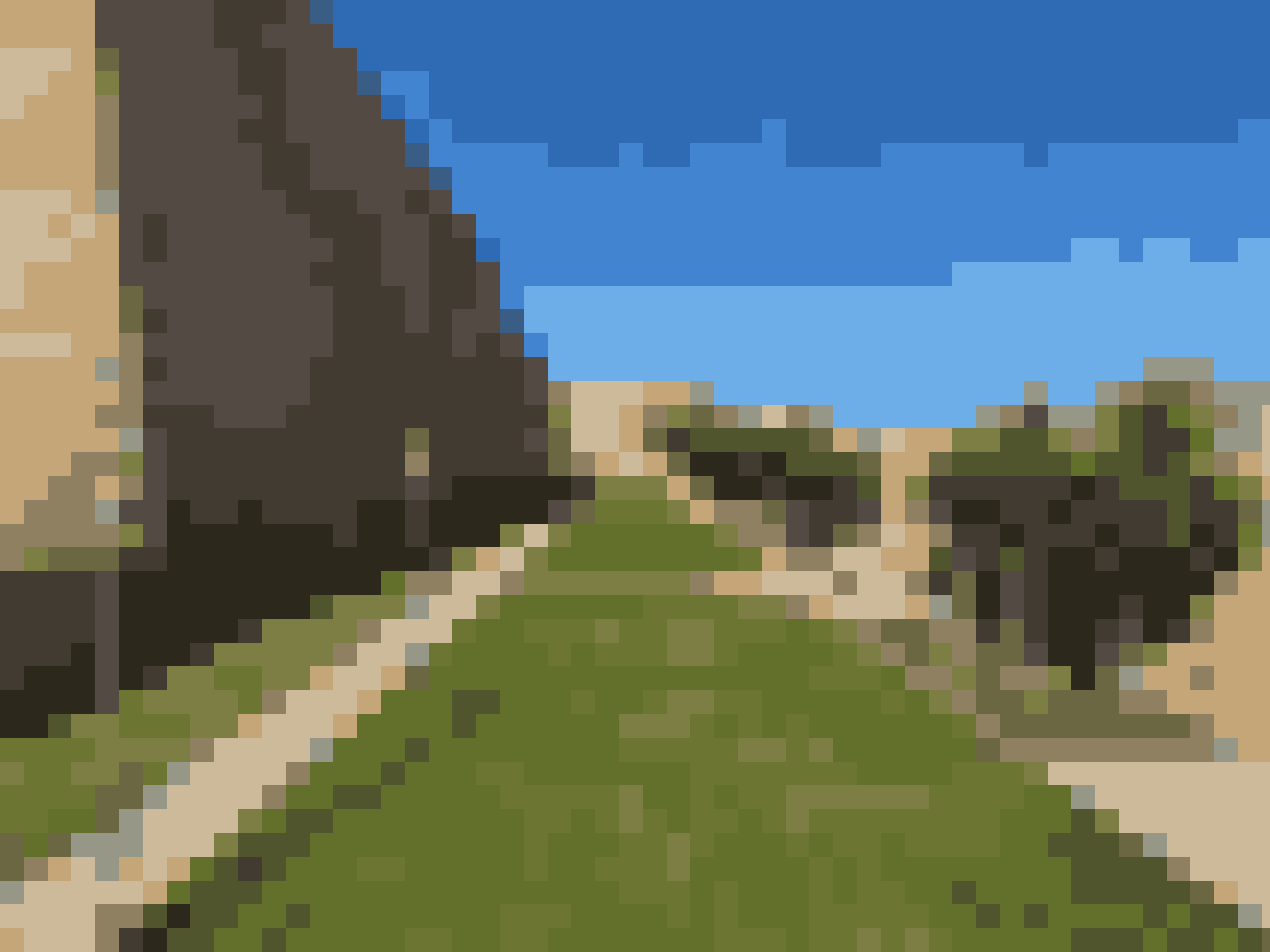 The downloaded pixel art of the Gozo citadel photo with 16 Colors, with the sky in a few flat bands of blue and the lawn in a few shades of green
The colors are chosen to fit your photo, so a green lawn stays green. The list goes from "8 Colors" to "256 Colors". "Unlimited" keeps the average color of every block.
How to make the download larger
"Output Scale" makes the download 2, 3 or more times as wide and tall as your photo. The preview does not change, but the size under it does. At 2×, the photo above is saved at 3414 × 2560 pixels.
Raise it for a small image, such as an icon, when you need a large picture with sharp blocks.
Before you download
- "Output Format" starts at PNG, even for a JPG photo. JPG and WebP are in the same list.
- "Output Quality" works for JPG and WebP only.
- A transparent background stays transparent in a PNG and turns white in a JPG.
- The "Compare with the original" button in the bar under the preview shows your photo and the pixel art with a slider between them.
Add your photo, pick the block size and the colors, and download your pixel art.
Ready to try it yourself?
Pixel Art Generator
Convert images to pixel art with customizable pixel size and color palette