How to Password Protect a PDF
Add a password to a PDF in your browser, choose whether readers may print, copy or edit it, and download the locked copy. Nothing is uploaded.
2 min read
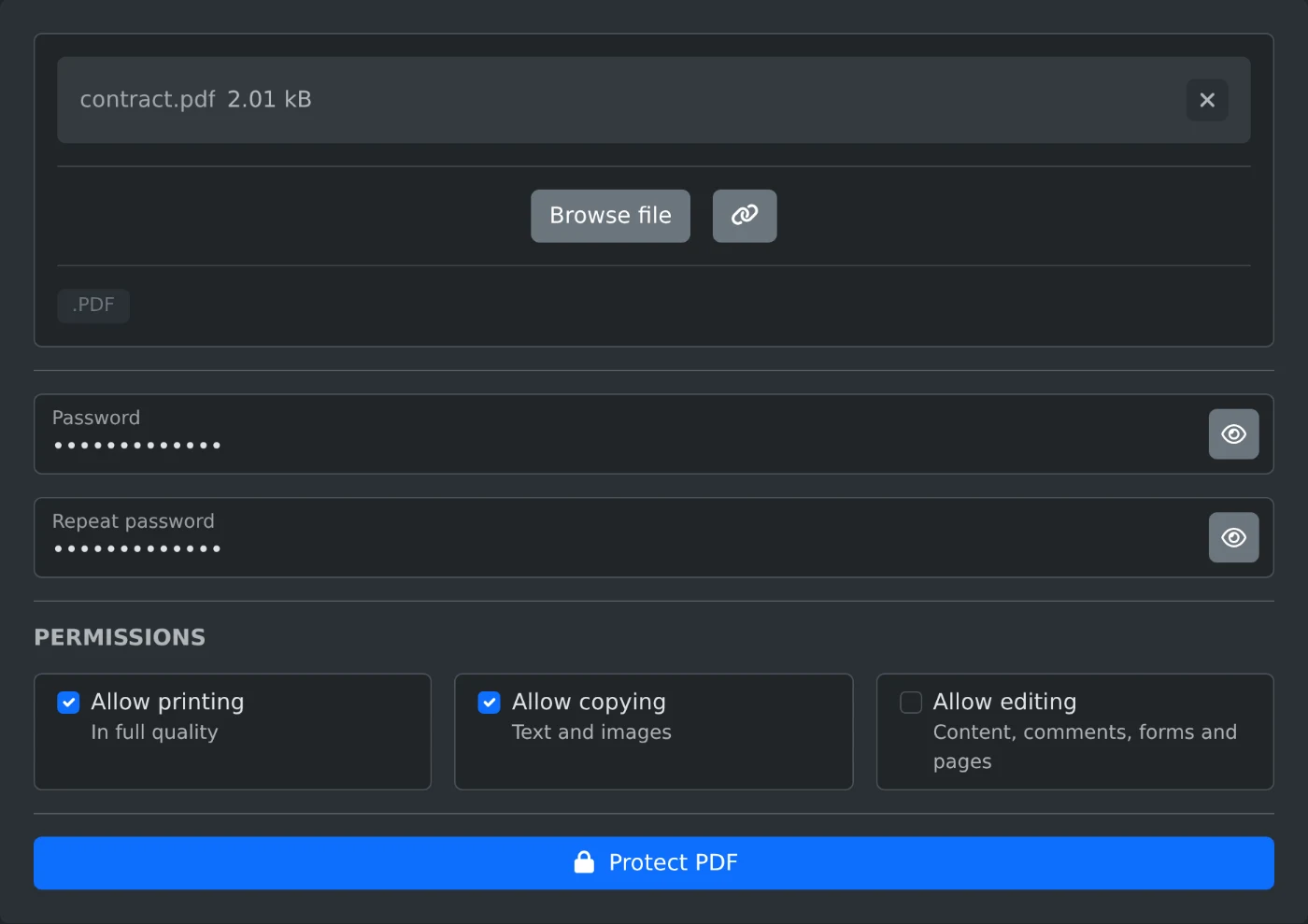
To password protect a PDF, open the PDF password protector and upload the file. Type the password in "Password" and again in "Repeat password". Then click "Protect PDF". The downloaded copy asks for that password before it opens. The PDF is encrypted with AES-256 in your browser, and neither the file nor the password is uploaded.
How to add the password
- Drop the PDF onto the upload box, or click "Browse file". It takes one file at a time.
- Type the password in "Password". Click the eye button in the field to see what you typed.
- Type the same password in "Repeat password".
- Untick any permission you want to block, or leave all three on.
- Click "Protect PDF". The file is saved with
-protectedadded to its name, socontract.pdfbecomescontract-protected.pdf.
What the permissions allow
All three boxes are ticked at the start. Untick a box to block that action:
- "Allow printing" lets readers print the file in full quality.
- "Allow copying" lets readers copy text and images.
- "Allow editing" lets readers change the content, add comments, fill in forms and organize pages.
The limits are set for everyone who opens the file with the password, you included. Keep the original file if you want to change it later.
Why "Protect PDF" cannot be clicked
The button turns on only when both fields hold the same password. When they differ, "The passwords don't match" appears under "Repeat password". Type the password again in both fields. An empty password does not work either.
A PDF that already has a password shows "This PDF already has a password. Remove it with the PDF Password Remover first." Open it in the PDF password remover, download the copy without a password, and protect that copy. Any file that is not a PDF shows "Please select a valid PDF file".
Before you send the file
- Keep the password somewhere safe. The site does not save it, and the file does not open without it.
- The pages, text, links and form fields stay as they were.
- The original file on your computer is not changed. You get a new file.
Open the protected copy once with the password before you send it to anyone.
Ready to try it yourself?
PDF Password Protector
Protect a PDF with a password using AES-256 encryption. Choose whether readers may print, copy or edit it, then download the locked file. Runs in your browser.