How to Open an STL File Online Without Software
Open an STL file in your browser and turn the 3D model with the mouse or a finger. Change its colors, show the wireframe and save a screenshot.
3 min read
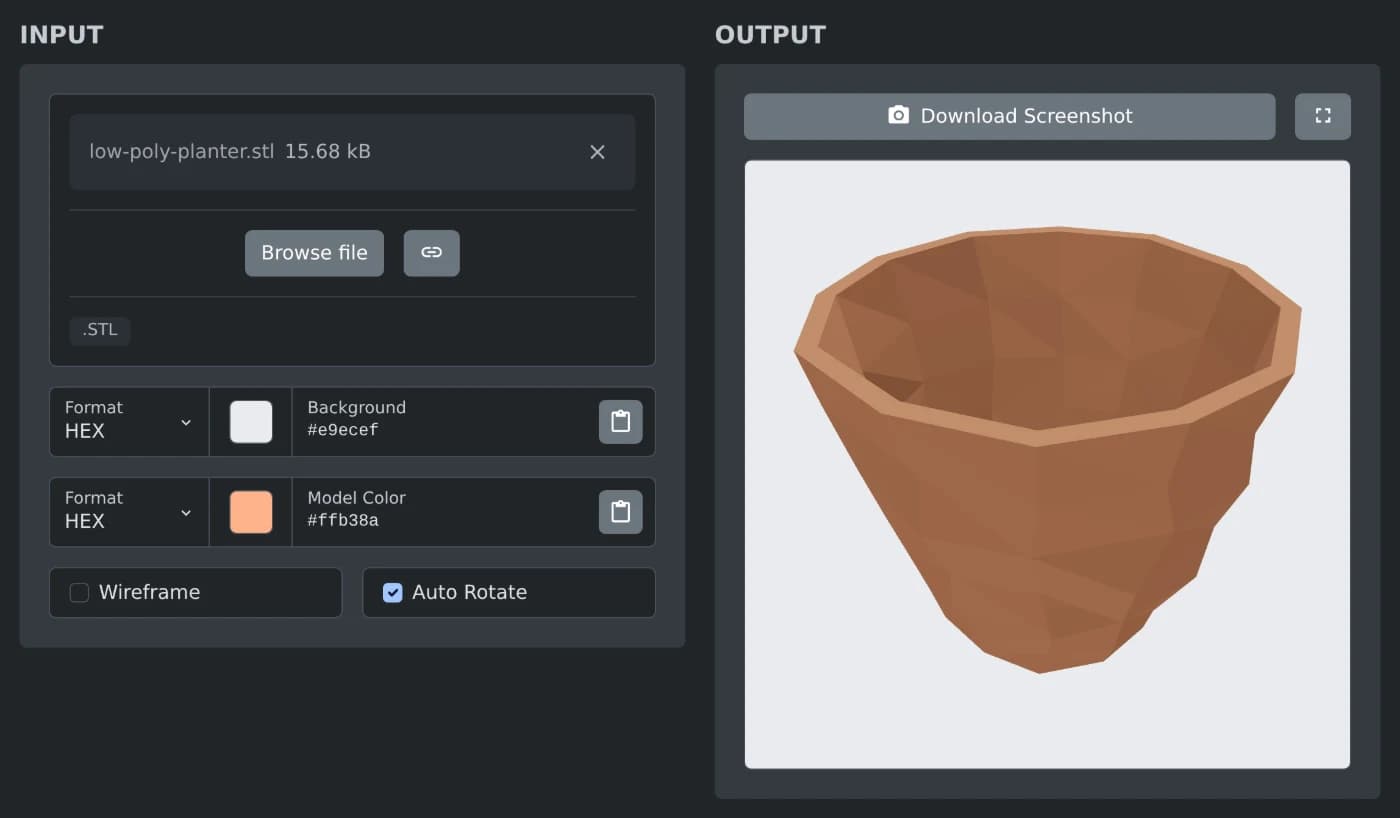
To open an STL file online, go to the STL 3D model viewer and drop the file on the box, or click "Browse file". The 3D model appears in the view and starts to turn slowly. Drag it with the mouse to look at it from any side. The file is opened in your browser and is never uploaded.
There is nothing to install, and both binary and text (ASCII) STL files work. Every model is sized to fit the view, and no measurements are shown.
How to look around the model
- Drag with the left mouse button to turn the view.
- Scroll the mouse wheel to zoom in and out.
- Drag with the right mouse button, or hold Shift and drag, to move the model.
On a phone or tablet, drag one finger to turn the view. Pinch with two fingers to zoom, and drag two fingers to move the model.
Auto Rotate is on when the model opens, so it keeps turning while you look. Untick Auto Rotate to stop it. The model then goes back to the position it started in.
The Enter Fullscreen button next to "Download Screenshot" shows the view on the full screen. Press Esc to go back.
How to change the colors
The model starts white on a gray background. Click the color square in Model Color or Background to pick another color. You can also type a code such as #ffb38a into the field. The whole model gets one color.
Tick Wireframe to see the triangles the model is made of.
How to save a screenshot of the model
- Untick Auto Rotate, so the model stays still.
- Drag the model to the angle you want.
- Click "Download Screenshot".
The picture is saved as a PNG file whose name starts with model-. It shows the model on the Background color, as in the view.
When the model lies down or does not appear
Some models open lying down, with the top facing you. The viewer keeps the direction that the file was saved with. Untick Auto Rotate and drag up as far as the view goes. Then drag left or right until the model stands upright.
If the file is damaged or has no model in it, a red message above the view says it could not be read. Export the file again from your 3D program, then add it once more.
The viewer opens only files that end in .stl. For an OBJ or glTF model, use the OBJ 3D model viewer or the GLTF/GLB 3D model viewer.
Drop your STL file on the box, turn it to the side you need, and download the screenshot.
Ready to try it yourself?
STL 3D Model Viewer
Upload and view STL 3D model files with interactive controls, orbit navigation, wireframe mode, and customizable colors