How to Make a Screenshot of Code for Slides or Posts
Paste your code, pick the language and a macOS or Windows frame, and download a sharp PNG of it for slides, docs or social posts.
3 min read
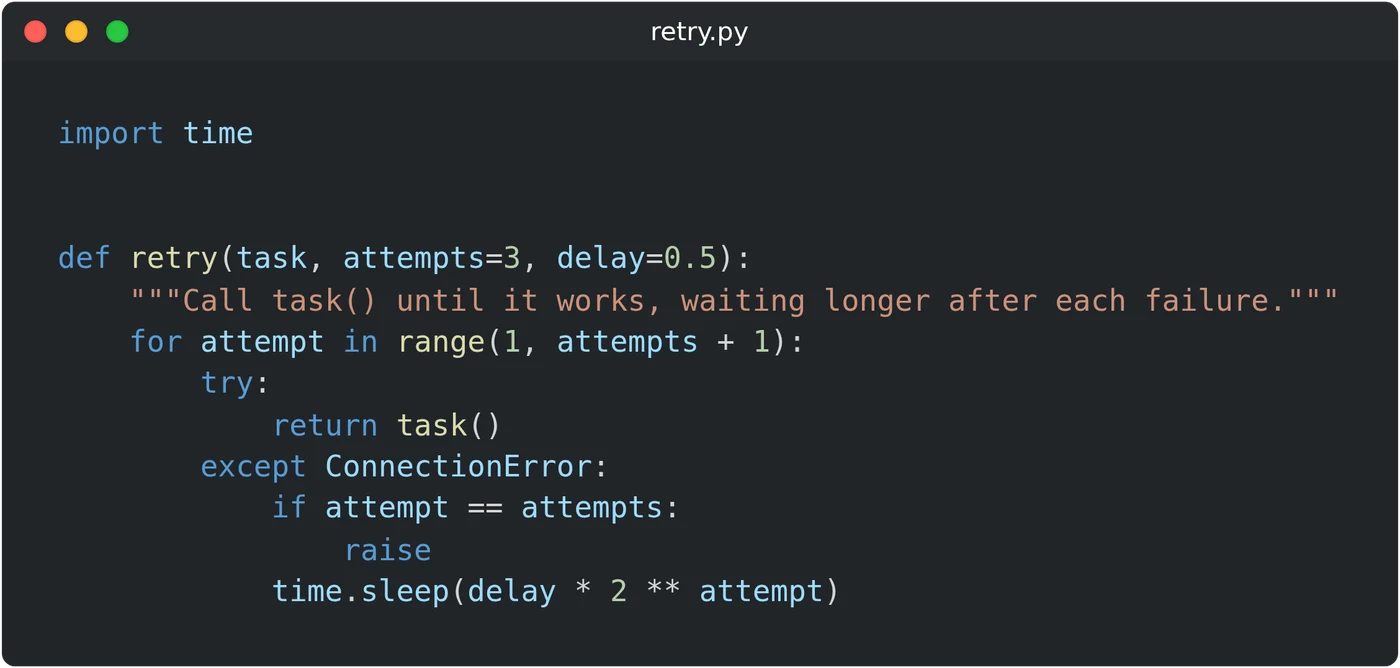
To make a screenshot of code, open the code screenshot generator and paste your code into the window. Pick the language under "Language" so the colors fit the code. Type a name in "File name" for the title bar, then click "PNG". The image is made in your browser.
A screenshot of your editor also shows tabs, menus and small text. Here you get only the window with your code, at three times its size on the screen. The text stays sharp on a large slide.
How to make the image
- Click inside the window and paste your code. You can also type there. Enter keeps the indent of the line above.
- Pick the language under "Language". JavaScript is the default.
- Pick a frame under "Window Style": macOS, Windows or None. The default is macOS.
- Type a file name such as
retry.py. It shows in the title bar. - Click "PNG" under the preview.
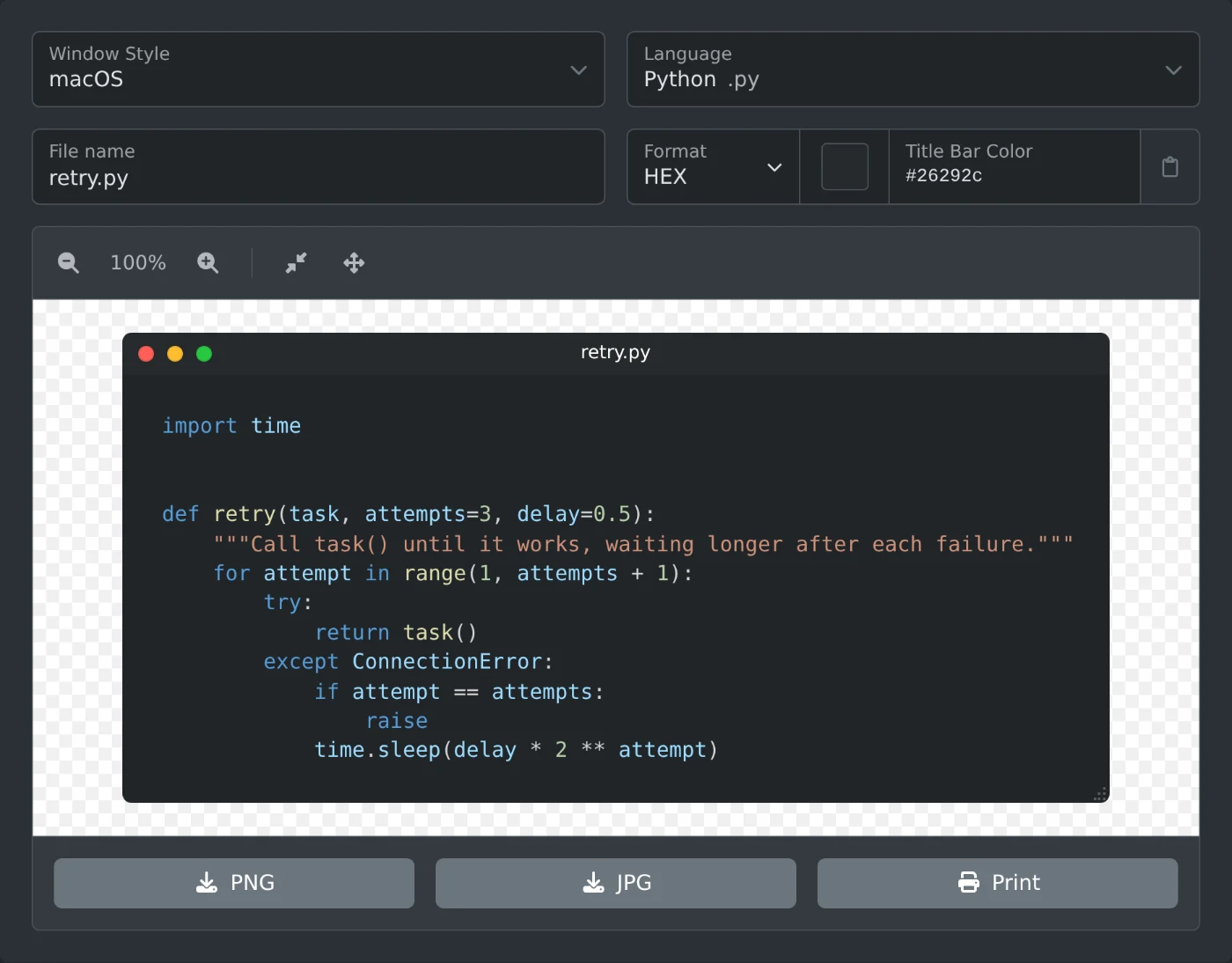 Code screenshot generator with the Python retry function in the editor, Python picked as the language and retry.py typed as the file name
The file is saved as snippet followed by a number, for example snippet-1792757286543.png. Click "Insert sample" to see a short JavaScript sample first.
Which languages you can pick
The "Language" list has 25 entries.
- Web: JavaScript, TypeScript, HTML and CSS.
- Programming: Python, Java, Rust, C++, C, Go, PHP, SQL and Shell.
- Data and config: JSON, JSON5, XML, YAML, CSV, INI, TOON, Nginx and Prisma Schema.
- Text: Markdown, LaTeX and Plain Text.
The language only sets the colors. It does not come from the code or the file name, so pick it yourself.
How to change the colors
The code colors follow the theme of the site. For a dark image, open the menu at the top of the page, click the theme button and choose "Dark theme". For a white image, choose "Light theme".
The title bar stays dark in both themes until you change "Title Bar Color". The title text turns white or black, whichever is easier to read. With "Window Style" set to None, there is no title bar, and the color field is off.
The font and the padding are fixed. The image has no line numbers.
How to set the width
The window is as wide as its longest line. Drag the small dotted handle in the bottom right corner to make it narrower or wider. Long lines then wrap onto the next line. The window is at least 300 pixels wide, and the handle is not in the image.
A very long line can push the window out of the preview. Click the Reset button in the bar above the preview to fit it again. The zoom buttons change only the preview, not the download.
Which format to choose
- PNG keeps the area outside the round corners clear, so the image fits a slide of any color.
- JPG fills those small corners with black.
- Print opens the image in a new window with the print dialog.
Both formats are three times the size of the window on the screen. For example, a window 752 pixels wide gives an image 2256 pixels wide.
Paste the code, pick the language, and download the PNG for your slide.
Ready to try it yourself?
Code Screenshot Generator
Generate screenshot of code snippets with syntax highlighting.