How to Make a Custom Crosshair Code for CS2
Pick a style, size, gap and color for your Counter-Strike 2 crosshair, check it in a pixel preview, and copy the share code or console commands.
3 min read
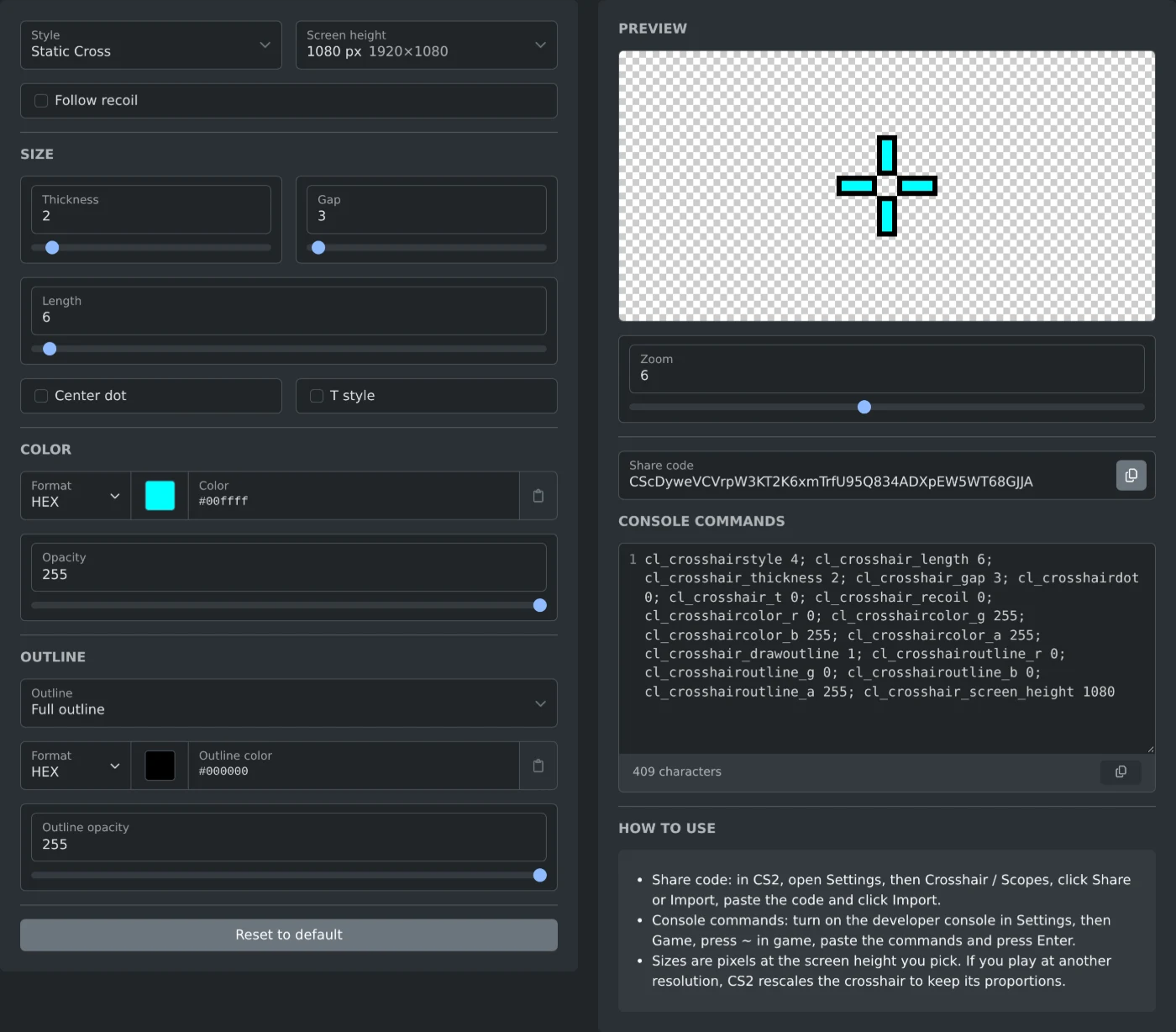
To make a custom crosshair for CS2, open the CS2 crosshair generator and pick a Style. Set the thickness, gap, length and color, and check the preview. Then copy the "Share code" and import it in the game, or paste the "Console commands" into the console. The code and the commands change with every setting you make.
The generator makes share codes but does not read them. To change a crosshair you already use, set its values again by hand.
How to make the crosshair
- Pick a Style: Static Cross, Static Circle, Static Square, Dot Only or Static Quadrant.
- Under "Screen height", pick the height of the resolution you play at.
- Under Size, set Thickness, Gap and Length with the sliders or the number fields.
- Under Color, pick the Color and its Opacity. An opacity of 255 is fully solid.
- Under Outline, pick "Full outline", "Half outline" or "No outline". Then set the "Outline color" and "Outline opacity".
- Tick or untick "Follow recoil". It is on by default.
- Click the copy button in the "Share code" field.
The crosshair in the picture above is a Static Cross with Thickness 2, Gap 3 and Length 6. Its color is #00ffff with a full black outline, and "Follow recoil" is off. Its share code is CScDyweVCVrpW3KT2K6xmTrfU95Q834ADXpEW5WT68GJJA.
The generator starts with a green Static Cross with a black outline. "Reset to default" puts every setting back except the screen height. To reset only one slider, double click it.
Which settings each style has
The Size section shows only the settings that the style uses.
- Static Cross: Thickness, Gap, Length, "Center dot" and "T style".
- Static Circle: Thickness, Gap and "Center dot".
- Static Square: Thickness, Gap and "Center dot".
- Static Quadrant: Thickness, Gap, "Quadrant size" and "Center dot".
- Dot Only: Thickness.
"T style" leaves out the top line of the cross. All sizes are in pixels.
How to check the crosshair in the preview
The preview draws the crosshair pixel by pixel on a white and gray checkerboard. It opens at Zoom 3, three times the real size. Set Zoom to 1 to see the real size, or raise it to check single pixels. The zoom changes only the preview, not the share code.
The checkerboard is the only background. To see the color on a map, load the crosshair in the game.
How to put the crosshair in CS2
The "How to use" box under the commands gives both ways.
- Share code: in CS2, open Settings, then Crosshair / Scopes. Click Share or Import, paste the code and click Import.
- Console commands: turn on the developer console in Settings, then Game. Press ~ in the game, paste the commands and press Enter.
The commands are on one line with a semicolon between them, so one paste sets every value. For the crosshair above, the line starts with cl_crosshairstyle 4; cl_crosshair_length 6; cl_crosshair_thickness 2; cl_crosshair_gap 3. The last command is cl_crosshair_screen_height, with the screen height you picked.
Which screen height to pick
Sizes are pixels at the screen height you pick. Each height in the list has a resolution next to it, such as 1080 px for 1920×1080 or 960 px for 1280×960. The default is 1080 px. If you play at another resolution, CS2 scales the crosshair so it keeps its shape.
Pick the style, check the crosshair at zoom 1, and import the share code in CS2.
Ready to try it yourself?
CS2 Crosshair Generator
Create a custom Counter-Strike 2 (CS2) crosshair with a pixel-accurate preview. Set the style, size, gap, thickness, color and outline, then copy the share code or console commands to use it in game.