How to Flatten a PDF
Make filled form fields, highlights, notes and stamps part of the page, so nobody can change them, and download the flattened PDF. Nothing is uploaded.
3 min read
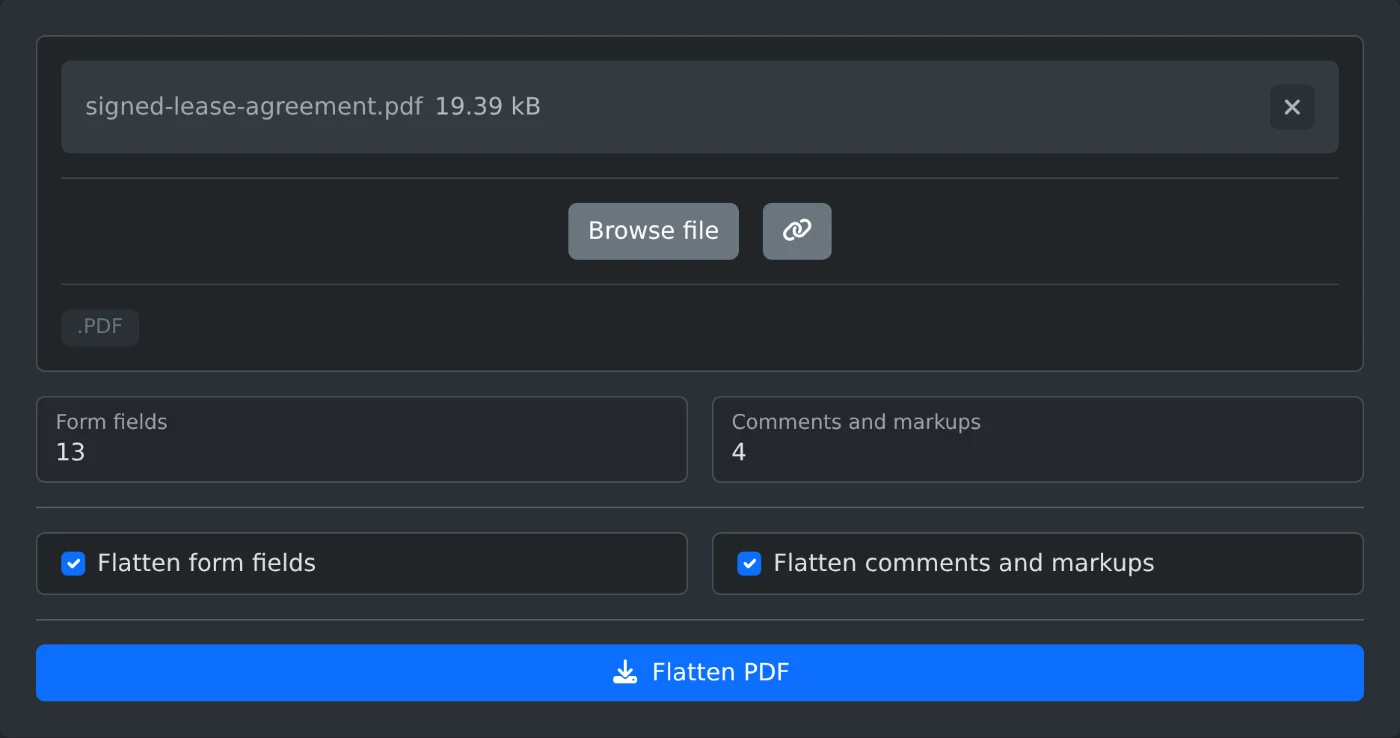
To flatten a PDF, open the PDF flattener and upload the file. Leave "Flatten form fields" and "Flatten comments and markups" ticked, then click "Flatten PDF". The flattened copy downloads right away. The PDF is flattened in your browser and is never uploaded.
Flattening draws the filled fields and the comments into the page itself. The page looks the same, but the answers, highlights and stamps can no longer be edited or moved.
How to flatten the file
- Drop the PDF onto the upload box, or click "Browse file". It takes one file at a time.
- Wait for the counts. "Form fields" and "Comments and markups" show how many of each the PDF has.
- Untick anything you want to keep editable. Both boxes are ticked at the start.
- Click "Flatten PDF". The file is saved with
-flattenedadded to its name, sosigned-lease-agreement.pdfbecomessigned-lease-agreement-flattened.pdf.
Which parts to flatten
Flatten both when the file is finished, such as a signed lease you are about to send. Flatten only the form fields when the comments are still under review. The comments then stay as they are and can still be edited. Flatten only the comments to keep the form fillable and make the highlights, notes, shapes and stamps permanent.
A box cannot be ticked when the PDF has nothing of that kind. When the PDF has neither, "Flatten PDF" cannot be clicked. A note then says "This PDF has no form fields or comments to flatten."
What is not flattened
- Links stay clickable.
- Hidden comments are removed instead, since there is nothing to show.
- Some comments do not store how they look. They stay as they are, and a note above the options says how many.
- A field with text such as Chinese or Japanese stays fillable. A warning after the download names those fields.
- Redaction marks that were not applied yet stay as they are.
When the PDF does not open
A PDF with a password or with restrictions shows "This PDF is protected with a password or restrictions. Remove them with the PDF Password Remover first." Open it in the PDF password remover, download the copy, and flatten that copy. A file that is not a PDF shows "Please select a valid PDF file".
Keep the original file in case an answer needs to change, and check the flattened copy before you send it.
Ready to try it yourself?
PDF Flattener
Flatten a PDF so its form fields, comments, highlights and stamps become part of the page and can't be edited anymore. Pick what to flatten and download the result.