How to Fill Out a PDF Form
Type your answers into a fillable PDF form in your browser, check each one on the page preview, and download the filled file. Nothing is uploaded.
3 min read
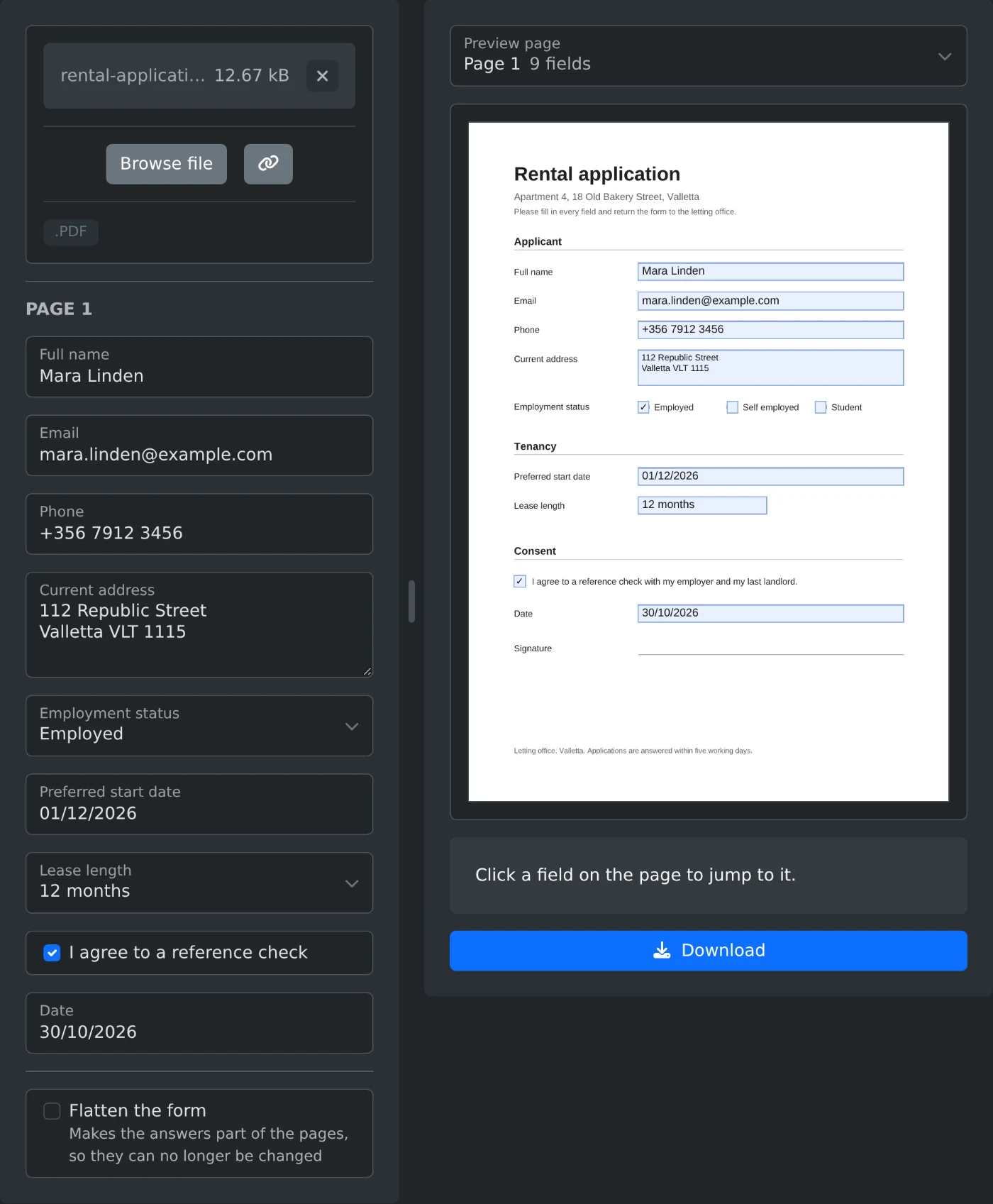
To fill out a PDF form, open the PDF form filler and upload the form. Its fields appear in a list, page by page. Type your answers, pick from the lists and tick the boxes. Each answer shows up in its place on the page preview. Then click Download. The form and your answers stay in your browser and are never uploaded.
How to fill in the form
- Drop the PDF onto the upload box, or click "Browse file".
- Wait for the fields. They are grouped under "Page 1", "Page 2" and so on.
- Type into the text fields. Answers already saved in the PDF are filled in.
- Pick radio button and list answers from their dropdowns. Tick the checkboxes.
- Check each answer on the page preview.
- Click Download. The file is saved with
-filledadded to its name.
How to find a field on the page
Each field in the list is named after its tooltip in the form. A form without tooltips shows its internal field names, which can be hard to match to the page. Then click the box on the page preview instead. The list jumps to that field, and you can start typing. The field you are filling in is highlighted on the page.
For a form with several pages, pick a page under "Preview page". Each page with fields shows how many it has. When you click into a field on another page, the preview turns to that page.
When to flatten the form
Tick "Flatten the form" before you click Download. It makes the answers part of the pages, so they can no longer be changed. Use it for a form you send as final. Leave it off when someone else still has to fill in their part. A flattened file has no fields left, so fix any answer in the original form and download again.
What to do when no fields appear
A PDF without fields shows "This PDF has no fields to fill in." Scans and forms saved as plain pages have nothing to type into. Ask the sender for a fillable version.
An XFA form gets its own message. Only Adobe Acrobat and Adobe Reader can fill it in.
A PDF with a password or editing restrictions does not open here. Remove them with the PDF password remover first.
Before you download
- Read only fields are shown, but you cannot change them.
- Some fields allow only a set number of characters. You cannot type more than that.
- Signature fields are not in the list. Sign the filled file with the PDF signer.
- Answers in Chinese or Japanese are saved, and your PDF viewer draws them. A note after the download names those fields.
- The original file on your computer is not changed. You get a new file.
Check every answer on the preview once more, then download the filled form.
Ready to try it yourself?
PDF Form Filler
Fill in the form fields of a PDF: text boxes, checkboxes, radio buttons and lists. See where each answer goes on the page preview, then download the filled PDF, flattened if you like.