How to Edit or Remove PDF Metadata
Change the title, author, keywords and dates stored in a PDF, or clear them all, then download the edited copy. Nothing is uploaded.
3 min read
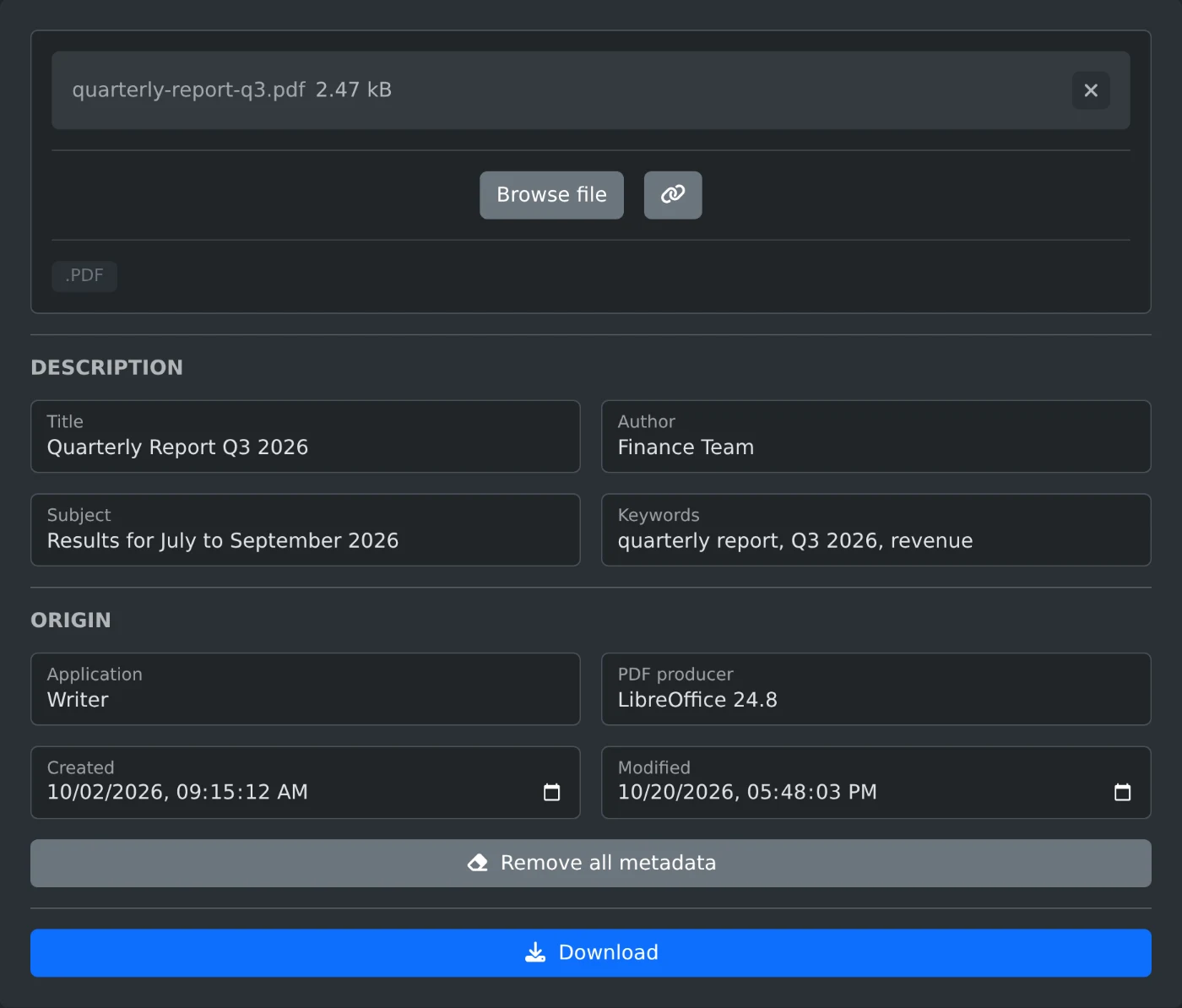
To edit PDF metadata, open the PDF metadata editor and upload the file. The fields fill with the title, author and other properties of the PDF. Type new values, then click Download. To remove everything, click "Remove all metadata" before you download. The PDF is read and saved in your browser and is never uploaded.
Metadata is the information a PDF keeps about itself. It often holds your name, an old draft title or the app you used. PDF viewers show it in the document properties, so check it before you send a file.
How to change the properties
- Drop the PDF onto the upload box, or click "Browse file".
- Wait for the fields to show the current values.
- Edit Title, Author, Subject and Keywords in the "Description" section.
- Check Application, PDF producer, Created and Modified in the "Origin" section.
- Click Download. The file is saved with
-editedadded to its name.
Application is the program that made the original document, such as a word processor. PDF producer is the program that made the PDF from it.
How to remove one property
Clear its field and download. That property is removed from the file, and the others stay. For example, clear Author to send a report without your name.
Some apps add extra entries that the editor does not show, such as a company name. They stay in the file unless every field is empty.
How to remove all metadata
Click "Remove all metadata". Every field becomes empty, but nothing is saved yet. You can still type a new title. Then click Download.
With every field empty, the download has no document properties at all. The extra entries are removed too. Some PDFs keep a second copy of the properties for newer viewers. The editor updates that copy as well, so no viewer shows the old values. Old values left in the file by earlier edits are also removed.
How the dates are saved
Created and Modified show the date and time in your time zone. A date you do not change is saved exactly as the file had it. A date you change is saved with your time zone. Clear a date to remove it.
The download does not set the Modified date on its own. To show today's date, change it yourself.
Before you download
- A PDF with a password or restrictions cannot be edited. Remove them first with the PDF password remover.
- Editing a signed PDF makes its digital signature invalid.
- Metadata inside the images on the pages, such as camera details, is not changed.
- The pages stay as they are, and the original file on your computer is not changed.
Open the downloaded copy and look at its document properties before you share it.
Ready to try it yourself?
PDF Metadata Editor
View and edit the document properties of a PDF: title, author, subject, keywords, application, producer and dates. Change them or remove them all, then download the updated file.