How to Compare Two Texts Side by Side
Paste two versions of a text or open two files, and see the removed lines in red, the added lines in green and the changed words marked.
2 min read
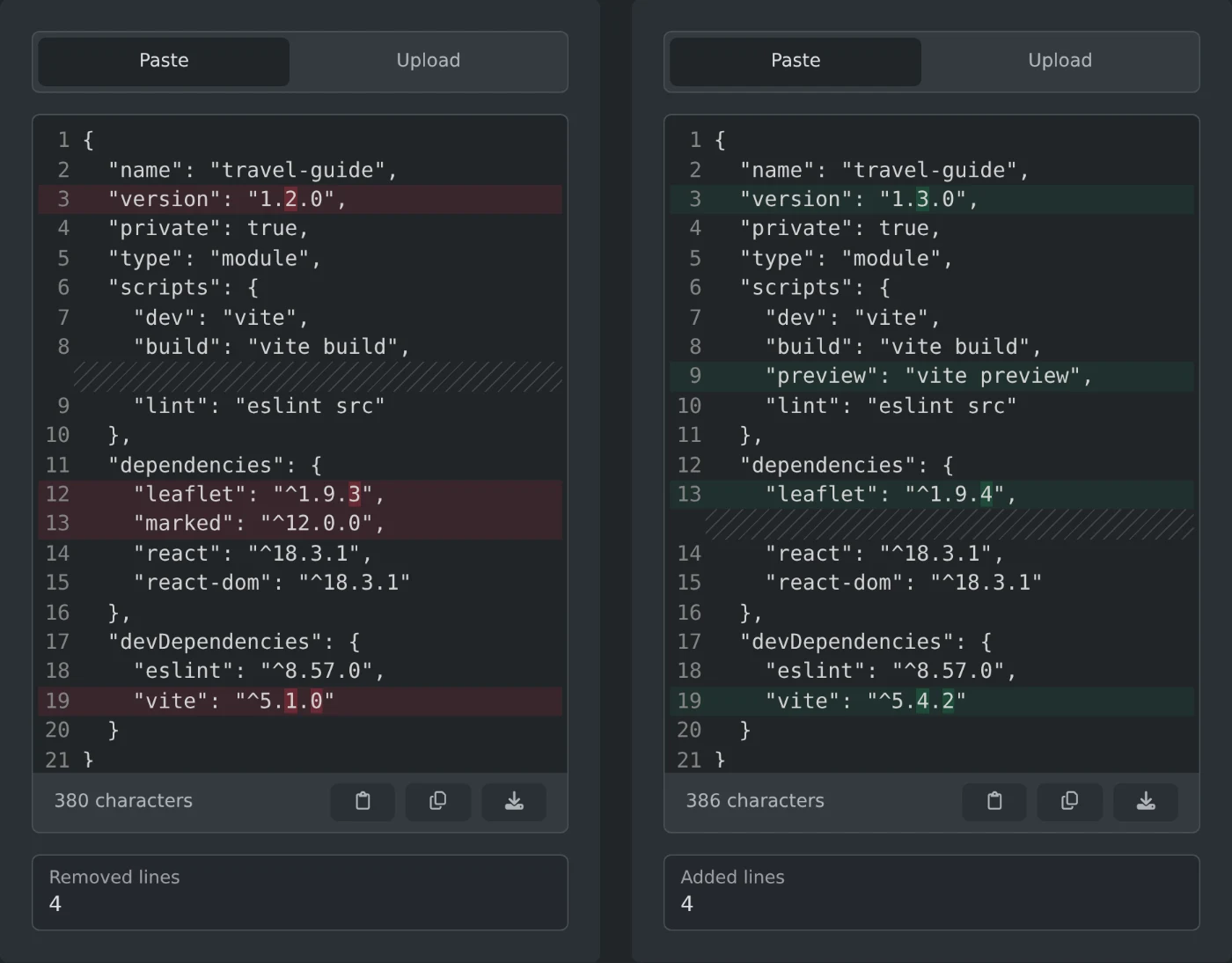
To compare two texts side by side, open the text compare tool. Paste the first version under Original and the second version under Modified. Removed lines turn red on the left, added lines turn green on the right, and the changed words get a darker color. The texts are compared in your browser and are never uploaded.
How to compare two files
- Click Upload above Original.
- Drop the first file on the box, or click "Browse file".
- The text of the file opens in the Paste tab.
- Do the same above Modified with the second file.
Any plain text file works, such as a TXT, CSV or JSON file, or a code file. You can also open a file on one side and paste text on the other.
How to read the colors
- A red line on the left is only in the original text.
- A green line on the right is only in the modified text.
- A red line next to a green line is a changed line. The darker parts show the words that changed.
- When most of a line is new, only the line is colored.
- Striped rows fill the space where the other side has more lines. They keep the same lines level on both sides.
Under each side, "Removed lines" and "Added lines" count the red and the green lines. Both show 0 when the texts are the same. The colors appear only when both sides have text.
What counts as a difference
- Spaces count. An extra space at the end of a line marks the line as changed.
- Upper and lower case count, so "Color" and "color" are different.
- Line endings do not count. A file saved on Windows and the same file saved on a Mac compare as equal.
How to edit and save a side
Both sides stay editable, and the colors update while you type. The two sides scroll together, so the lines you read stay next to each other. Long lines do not wrap. Scroll sideways to see the end of a line.
The buttons under each side paste the text from your clipboard, copy the text and download it. The download keeps the name of the file you opened. Pasted text is saved as original.txt or modified.txt.
Paste or open both versions, then read the red and green lines from the top down.
Ready to try it yourself?
Text Compare
Compare two texts or files side by side, like a code editor diff. See removed and added lines lined up, with the changed words marked.