How to Add Arrows to a Screenshot or Photo
Draw arrows on a screenshot or photo, move and recolor them, and download the image at full size as PNG, JPG or WebP. Nothing is uploaded.
3 min read
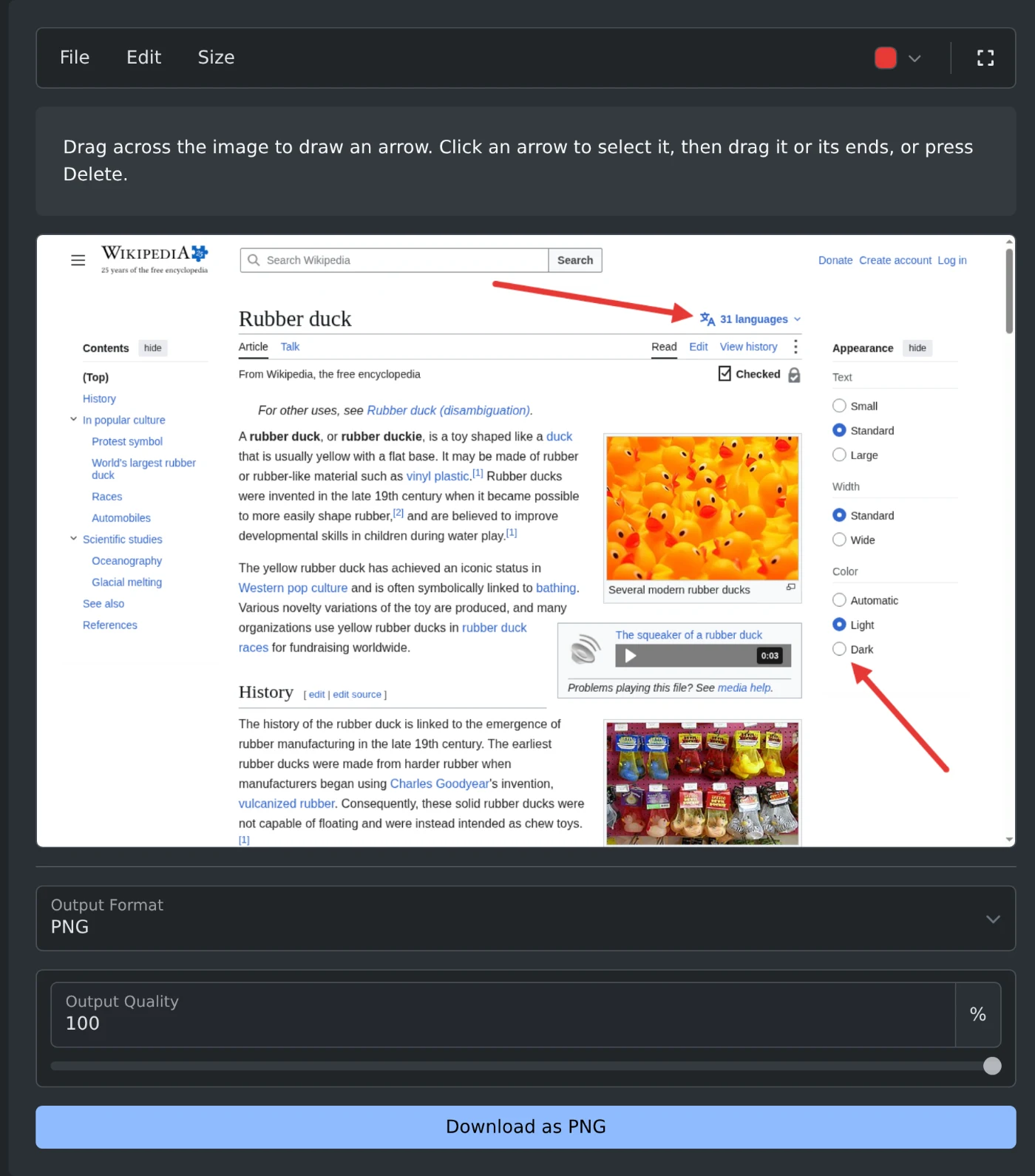
To add arrows to a screenshot or photo, open the image arrow adder and paste or choose the image. Drag across the image from where the arrow starts to the point it shows. Then click "Download as PNG" under the image. The image is edited in your browser and is never uploaded.
How to draw the arrows
- Press Ctrl+V (⌘V on a Mac) to paste a screenshot. You can also click "Browse file" or drop the image on the box. PNG, JPEG, WebP, GIF, BMP and AVIF files work.
- Press the mouse button where the arrow should start.
- Drag to the point the arrow shows and let go. The head is drawn there.
- Draw more arrows the same way.
- Click the download button under the image.
How to change an arrow
Click an arrow to select it. Small squares appear at both of its ends.
- Drag the arrow to move it.
- Drag a square to move that end.
- Press Delete or Backspace to remove the arrow.
- Press Escape to clear the selection.
Undo a change with Ctrl+Z and redo it with Ctrl+Y, or use the Edit menu. "Delete all arrows" in the same menu removes every arrow and keeps the image.
How to pick the color and size
The color button in the toolbar opens eight colors: red, orange, yellow, green, blue, purple, black and white. "Custom color" opens the color picker of your system. Red is the default.
The Size menu has Small, Medium, Large and Extra large, and Medium is the default. The size follows the size of the image. A medium arrow looks the same on a small screenshot and on a large photo.
A new color or size changes the selected arrow and every arrow you draw next. Other arrows keep their own color and size.
Which format to save
- A PNG screenshot is saved as PNG, and a JPEG photo as JPG. Change it under Output Format.
- PNG keeps the text in a screenshot sharp.
- JPG and WebP make smaller files. Their Output Quality starts at 92%.
- In a JPG, the transparent parts of an image become white.
The download has the same width and height as the original image. Its name ends in -arrows, so gozo-citadel.jpg is saved as gozo-citadel-arrows.jpg.
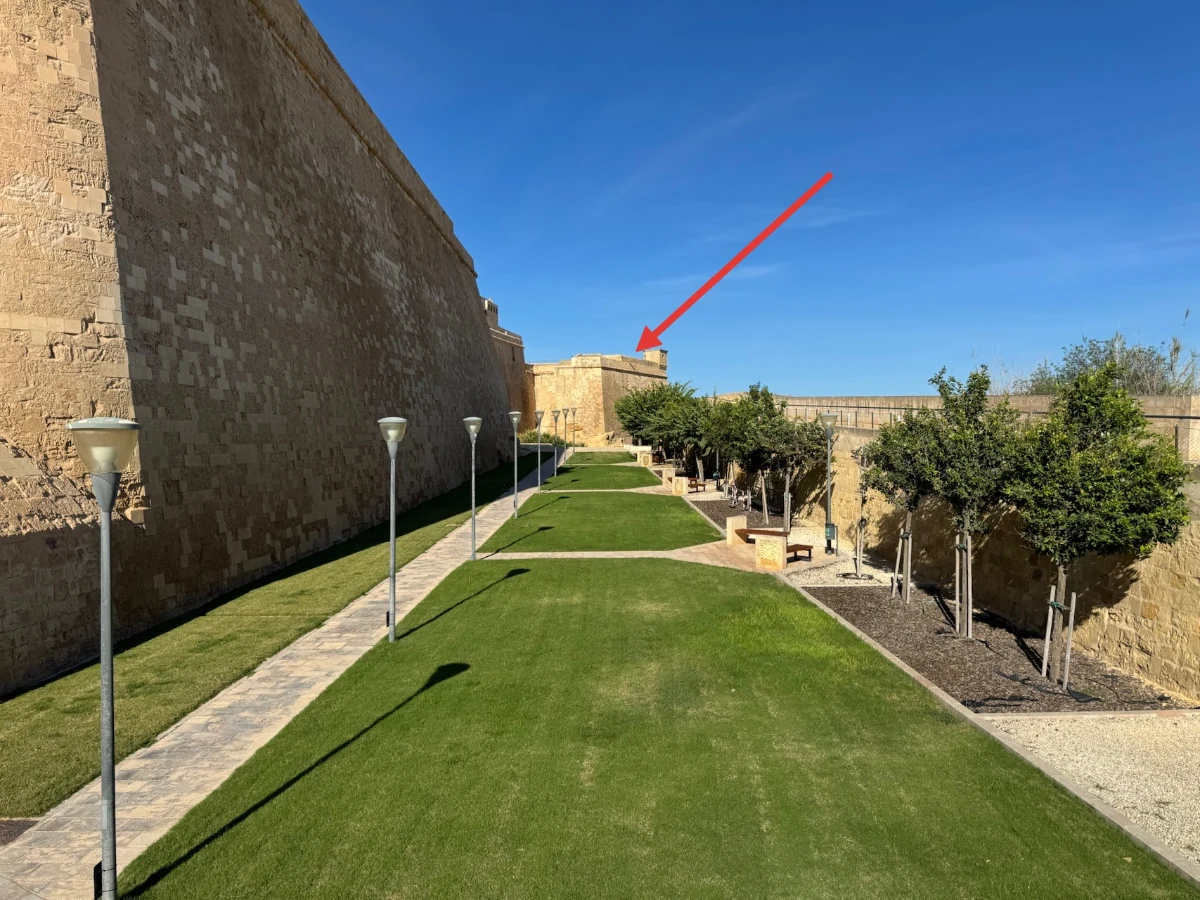 The Gozo citadel photo after download, with a red arrow pointing at the tower at the end of the walls
How to work on a large image
Click the full screen button at the right end of the toolbar. The image then fills the screen. The download settings are hidden in full screen, so open the File menu to download. Press Escape or click the button again to leave full screen.
Opening or pasting another image removes all arrows. Download the first image before you start the next one.
Paste the screenshot, drag the arrows, and download the image.
Ready to try it yourself?
Image Arrow Adder
Add arrows to screenshots and photos: drag to draw, then move, resize, or recolor each arrow and download the image as PNG, JPG, or WebP.