How to Extract Text From an Image in Your Browser
Copy the text from a photo, screenshot or scan in 19 languages. Pick the language, extract the text, then copy it or save it as a TXT file.
2 min read
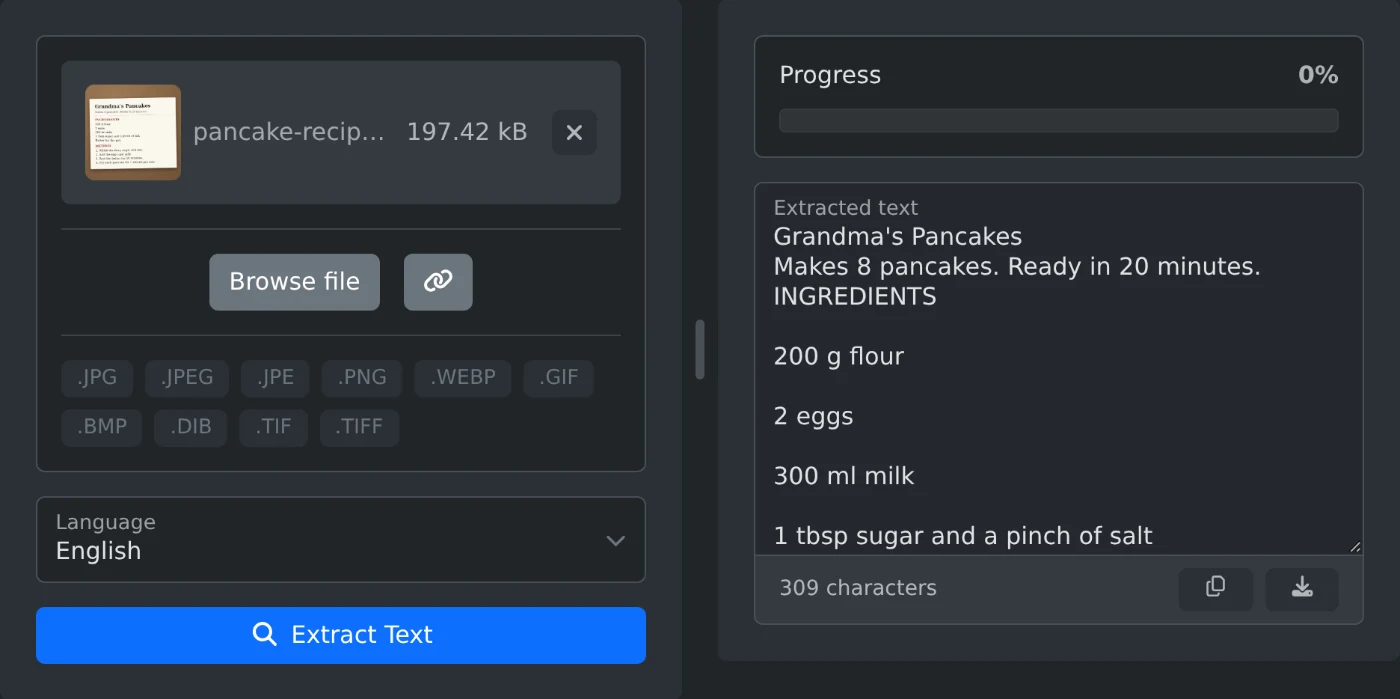
To extract text from an image, open the OCR Image Text Extractor and upload the picture. Pick the language of the text and click "Extract Text". The text appears in the "Extracted text" box, ready to copy or download. The image is read in your browser and is never uploaded.
How to copy text from a picture
- Drop the image onto the upload box, or click "Browse file". JPG, PNG, WebP, GIF, BMP and TIFF files work.
- Open the Language list and pick the language of the text. English is the default.
- Click "Extract Text". The button shows "Extracting..." and a percentage while it works.
- Click the copy icon under the text box to copy all the text.
- Or click the download icon to save a TXT file. It gets the name of the image, so
pancake-recipe.pngbecomespancake-recipe.txt.
The "Extracted text" box is read only. Paste the text into a document or a note to edit it.
The first extraction in a language takes longer. The language data loads from the site at that moment, and the browser keeps it for the next time.
Why the language matters
The extractor reads one language at a time. Pick the language the text is written in, even when the letters look like English. With English selected, the German line "Grüße aus München" came out as "Grille aus Miinchen". With German selected, it came out right.
The list has 19 languages. Among them are English, Spanish, French, German, Russian, Arabic, Hindi, Chinese, Japanese and Korean. When an image has text in two languages, run it once for each language.
How to get a clean result
- Use the largest and sharpest copy of the image you have. From a small, blurry copy of the recipe card, only the headings came through.
- Text in two columns comes out line by line across both columns. Crop each column and extract it on its own.
- Bullet points can turn into symbols such as
«. Delete them after you paste. - Read the result once before you use it.
How to copy text from a screenshot
The upload box takes image files, so it cannot take a screenshot straight from the clipboard. Save the screenshot as a PNG file first, then drop that file onto the box.
Upload the image, pick the language, and copy the text.
Ready to try it yourself?
OCR-bildtextextraktor
Extrahera text från bilder direkt i din webbläsare med Tesseract.js OCR-motor. Stöder 19 språk inklusive engelska, ryska, kinesiska, japanska, arabiska och mer.