How to Make an Invoice and Download It as a PDF
Fill in your details, your client and the items, add tax or a discount, and download a clean PDF invoice. No account, nothing is uploaded.
3 min read
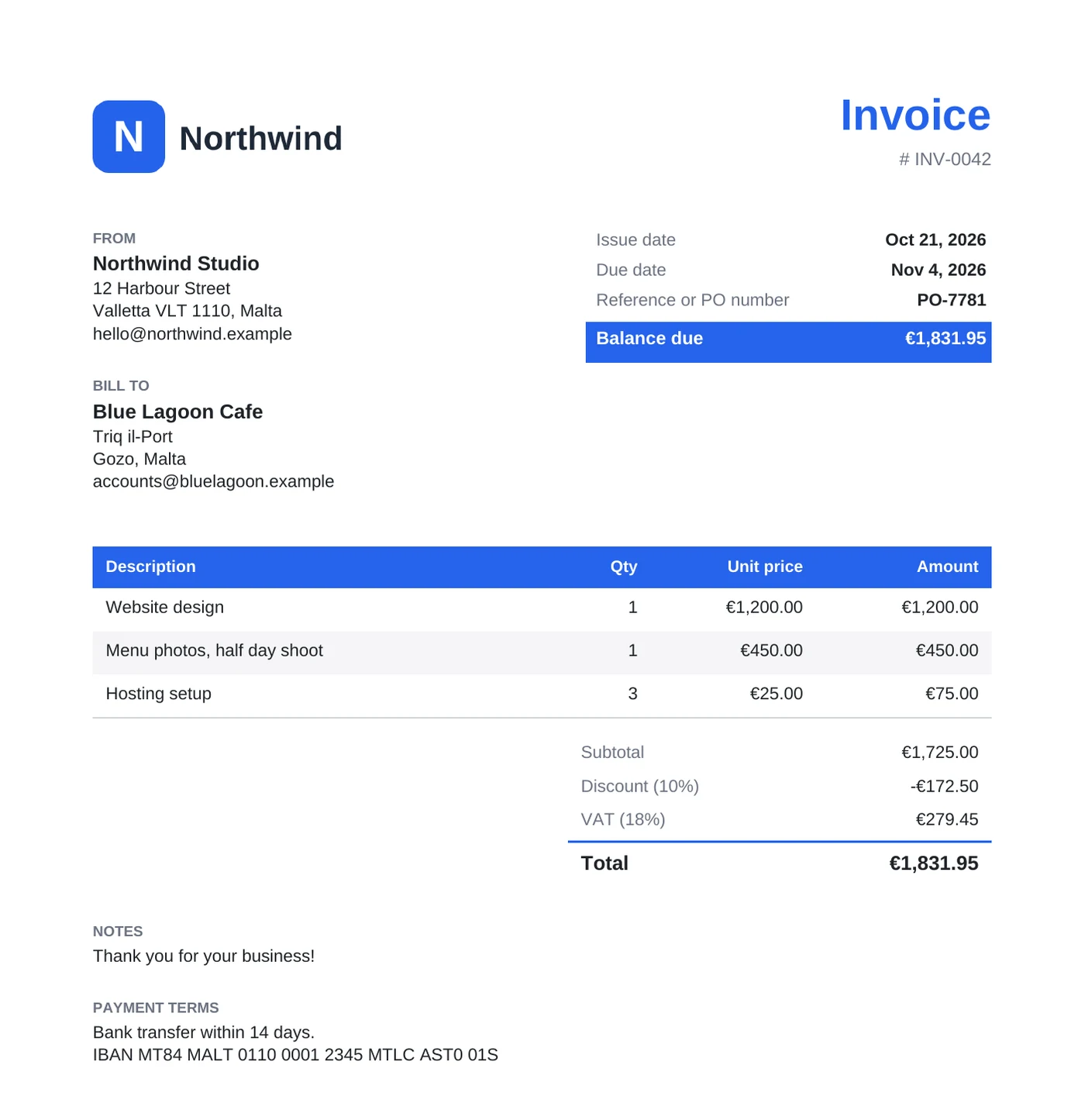
To make an invoice, open the invoice generator and fill in the form: your details, your client, and one row per item. The PDF preview on the right updates as you type. When it looks right, click "Download PDF". The invoice is made in your browser, so your client data is never uploaded.
The form is also saved in your browser. When you come back for the next invoice, your name, address and logo are still there.
How to fill in the invoice
- Under "Invoice details", check the invoice number. It starts at
INV-0001. The issue date is today and the due date is 14 days later. - Under "From", type your name or business and your address. Add your tax ID on the last line if you need one.
- Add a logo if you have one. PNG, JPEG, WebP, GIF and SVG files work.
- Under "Bill to", type the client name and address.
- Under "Items", type a description, a quantity and a unit price. Click "Add item" for each new row.
- Pick the currency, then add tax or a discount if you need them.
- Click "Download PDF".
The file is named after the title and the number, for example Invoice-INV-0042.pdf.
How tax, discount and shipping are counted
The three cards above the preview show the subtotal, the tax and the balance due. They follow this order:
- The discount is a percentage of the subtotal.
- The tax is a percentage of the subtotal after the discount.
- Shipping is added after the tax and is not taxed.
- "Amount paid" is taken off the total. The rest is the balance due.
Type the tax name your client expects, such as VAT or GST, in "Tax name". The PDF uses that name. In the invoice at the top, €1,725.00 minus 10% is €1,552.50. With 18% VAT, the balance due is €1,831.95.
What to put in notes and payment terms
Use "Payment terms" for how and when to pay: the bank transfer details, the IBAN and the number of days. Use "Notes" for a short thank you or a project name. Both are printed under the totals.
How to start the next invoice
Change the invoice number, the dates and the items. Your own details and the logo stay. "Clear form" empties every field, including your details, so use it only when you want a fresh start.
Under "Layout" you can change the accent color and switch the page size between A4 and Letter.
Before you download
- Read the preview once. The numbers in it are the numbers in the PDF.
- If a yellow note lists some characters, the PDF font cannot show them. Replace them with plain letters.
- Keep a copy of every invoice you send. The form keeps only the last one.
Fill in the form once, and each new invoice takes a minute.
Ready to try it yourself?
Генератор счетов
Создайте профессиональный счёт с логотипом, позициями, налогами и скидками, а затем скачайте его в формате PDF. Все данные остаются в вашем браузере.