How to Compress an Image in Your Browser
Make a JPG, PNG or WebP image smaller, see how much space you saved, and download the compressed copy. Nothing is uploaded.
2 min read
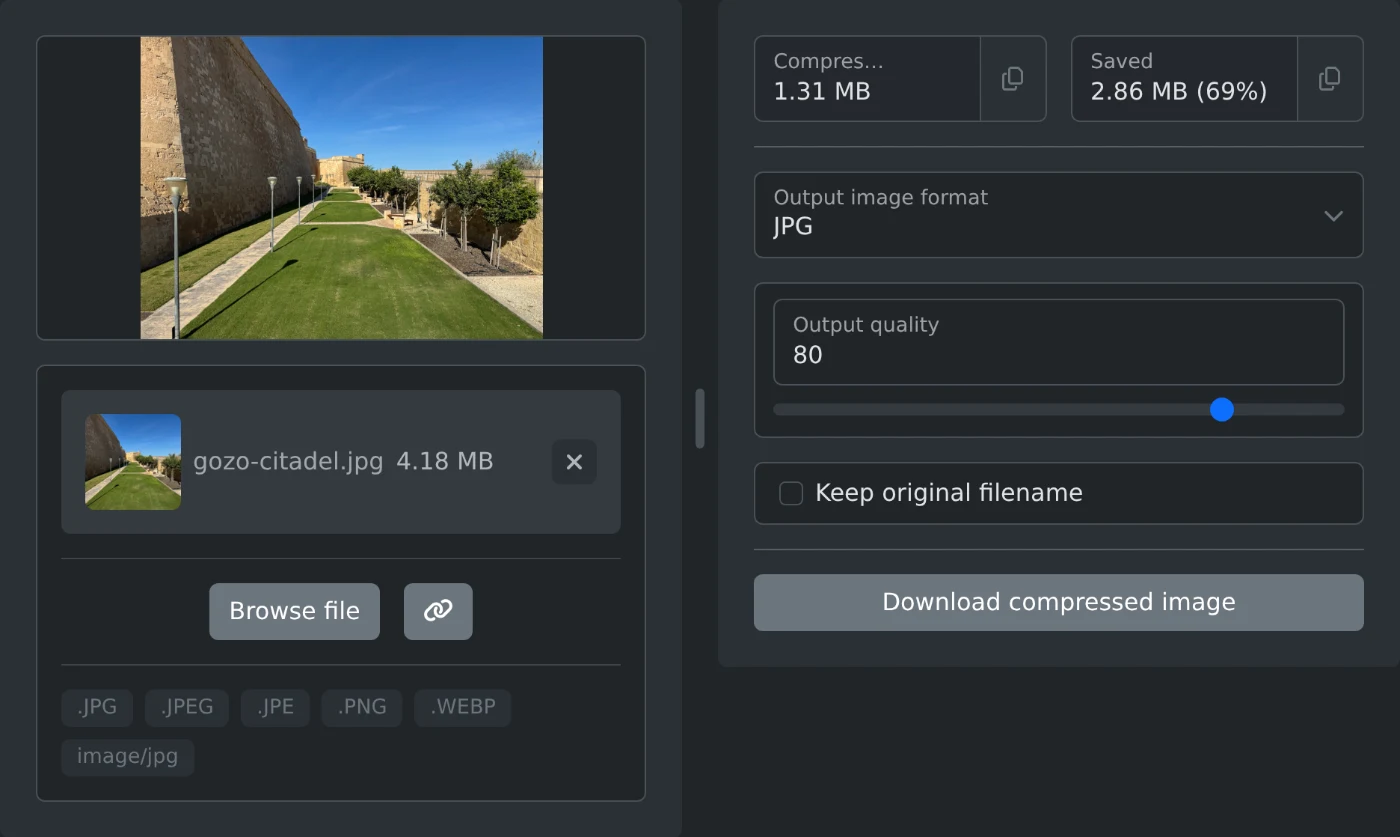
To compress an image, open the image compressor and choose a JPG, PNG or WebP file. It is compressed right away. Check the new size, then click "Download compressed image". The image is compressed in your browser and is never uploaded.
How to compress the image
- Click "Browse file", or drop the image onto the upload box.
- Wait a moment. The compressed size and the saved space appear on the right.
- Move the "Output quality" slider if you want a smaller file or a sharper picture.
- Click "Download compressed image".
The file is saved as compressed followed by a number, such as compressed-1792576800000.jpg. Tick "Keep original filename" to keep the name of your file, such as gozo-citadel.jpg.
Which quality to pick
The quality goes from 1 to 100 and starts at 80. A lower value gives a smaller file with softer details. A higher value gives a sharper picture and a bigger file.
The image is compressed again each time you move the slider. Watch the "Saved" field and stop when the size is small enough. The width and height of the image stay the same.
How to compress a PNG
The quality slider works for JPG and WebP files only. For a PNG file the slider is off, and the image is compressed at a fixed setting.
The "Output image format" list is set to the format of your file when you load it. Keep it that way. To save the image in another format, convert it first with the image converter. Then compress the new file.
Before you download
- The picture on the left is your original image. Open the downloaded file to check the quality.
- A small or negative "Saved" value means the image was already compressed. Keep the original in that case.
- Compress one image at a time. Choose the next file when the first one is downloaded.
Choose the image, check the saved space, and download the smaller copy.
Ready to try it yourself?
Bildkomprimerare
Komprimera bild.