How to Open a KeePass KDBX File Without KeePass
Open a KeePass or KeePassXC .kdbx database in your browser with its master password, search the entries, and copy a password. Nothing is uploaded.
3 min read
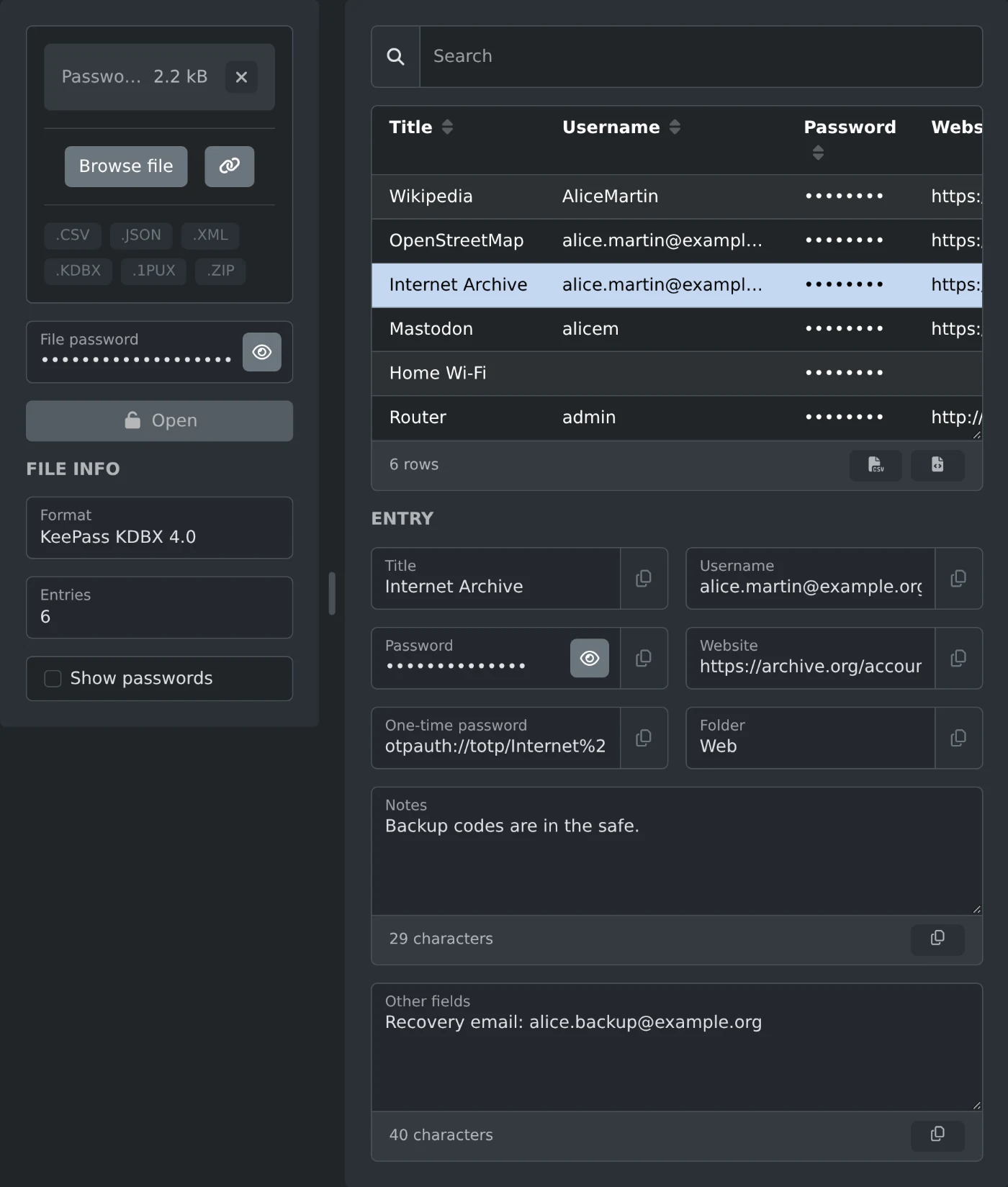
To open a KeePass .kdbx file without KeePass, drop it on the password manager file viewer. Type the master password in "File password" and click "Open". The entries appear in a table, and a click on an entry shows all of its details. The database is decrypted in your browser and is never uploaded.
This helps on a computer without KeePass, or when you need one password from an old backup. The viewer only reads the database. It cannot change or save it. It also opens exports from other password managers, such as Bitwarden JSON, 1Password .1pux, and CSV files from Chrome or Firefox.
How to open the database
- Drop the .kdbx file on the file box, or click "Browse file".
- Type the master password in "File password".
- Click "Open". Unlocking can take a few seconds.
- Click an entry in the table to see its details under "Entry".
The "Format" field shows the version, such as KeePass KDBX 4.0, and "Entries" shows how many entries the database has.
How to find and copy a password
Type in "Search" to filter the table. The search looks at titles, usernames, websites, folders, and notes.
Passwords show as dots. Tick "Show passwords" to see them in the table, or click the eye button in the Password field of one entry. Every field under "Entry" has a copy button, so you can copy a password without showing it.
An entry shows its title, username, password, website, one time password, folder, and notes. Fields you added yourself in KeePass are listed under "Other fields". Groups become folders, such as Web or Email / Work. Older versions of an entry from its history are not shown.
When the database does not open
- A wrong password message means the master password does not match. Check Caps Lock and the keyboard language.
- A database that also needs a key file cannot be opened here, even with the right password.
- KeePass 1.x files with the .kdb extension are not supported. Save them as KDBX in KeePass 2 or KeePassXC first.
- Databases encrypted with Twofish are not supported. AES and ChaCha20 work.
Before you save a copy of the list
The two buttons under the table save the list as a CSV or JSON file. These files hold the passwords as plain text. Delete them when you are done.
Drop the file, type the master password, and copy what you need.
Ready to try it yourself?
Просмотр файлов менеджеров паролей
Открывайте файлы и экспорты KeePass, Bitwarden, 1Password, LastPass, Chrome и других менеджеров паролей, чтобы просматривать все учётные данные, заметки и одноразовые пароли прямо в браузере.