How to Make a Photo Collage for Instagram or Print
Put several photos into one picture with a template, a grid or a mosaic, set the size for Instagram or a print, and download a JPG.
3 min read
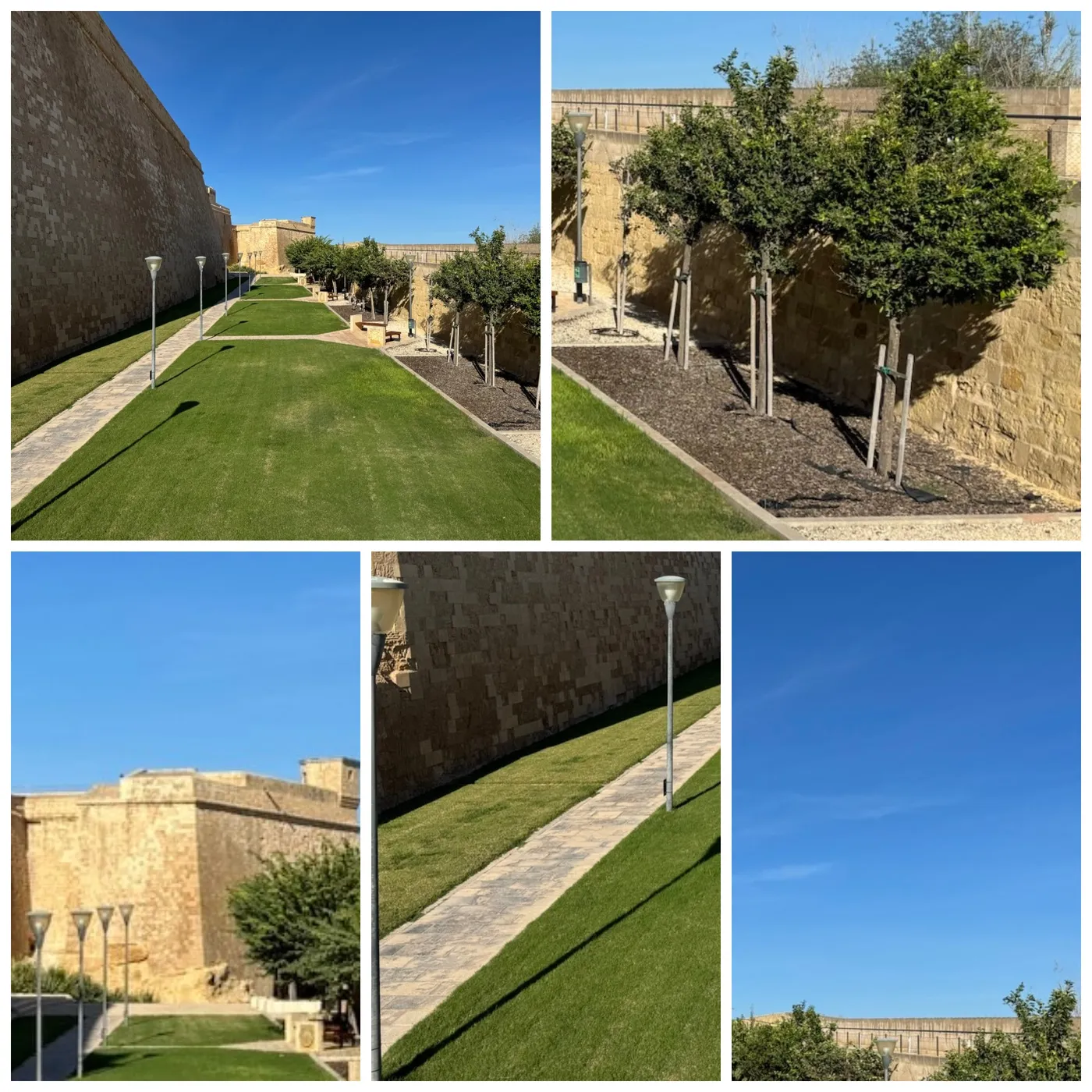
To make a photo collage, open the image collage generator and add your photos. A layout for that number of photos is picked for you. Choose another template if you like, set the size, and click Download. The collage at the top was made from five photos with the default settings. The photos stay in your browser and are never uploaded.
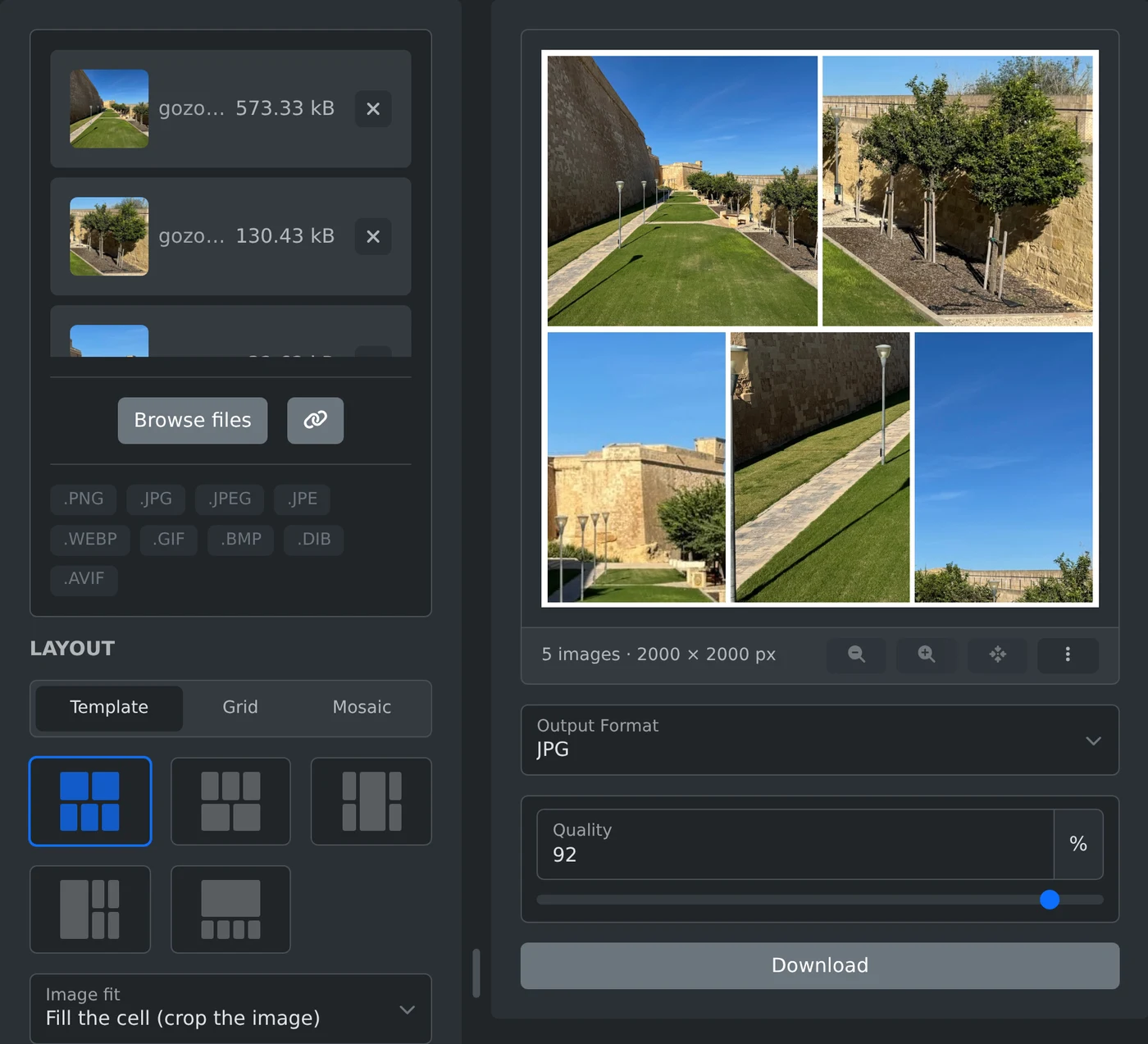
How to make the collage
- Click "Browse files" and choose the photos. You can also paste an image anywhere on the page.
- Under Layout, click the template you like.
- Under Size, pick a Shape. The default is 1:1, the square Instagram post, at 2000 × 2000 px.
- Arrange the photos in the preview.
- Pick JPG, PNG or WebP under "Output Format" and click Download.
The file is saved as collage followed by a number, for example collage-1792561234567.jpg.
Which layout to choose
- Template: a ready layout, often with larger and smaller photos. There are templates for 1 to 9 photos. With more than 9, only the first 9 are used.
- Grid: cells of the same size. Move the Columns slider to change the number of columns.
- Mosaic: every photo keeps its shape and is never cropped. The height of the collage follows from the photos.
In Template and Grid, the "Image fit" setting decides what happens to a photo that does not match its cell. "Fill the cell" crops the photo. "Show the whole image" keeps it whole and leaves empty space around it.
How to arrange the photos
Drag a photo to choose which part of it shows in the cell. Drag it onto another photo to swap the two. Drag the gap between two cells to make one larger and the other smaller.
Click a photo to select it. The buttons under the preview then zoom into it, reset it, or swap it with the previous or next photo. Shuffle mixes all photos, and the last button puts every cell and photo back. When the row is too narrow, some buttons move into the ⋮ menu.
Which size to pick
The Shape list names what each size is for.
- Use 1:1 for an Instagram post.
- Use 4:5 for an Instagram portrait post.
- Use 9:16 for Stories, Reels and TikTok.
- Use 16:9 for a YouTube thumbnail.
- Use 3:2 or 2:3 for a 6 × 4 in photo print.
- Use A4 portrait or A4 landscape for paper.
"Custom size" takes any width and height from 100 to 10,000 px.
How to change the frame
Spacing is the gap between the photos, and Border is the frame around the whole collage. Both are 20 px by default. Corner radius rounds the corners of each photo. Pick any background color, or tick "Transparent background" and save as PNG or WebP. A JPG has no transparency, so the background color fills it.
Add the photos, pick a template, move them until it looks right, and download.
Ready to try it yourself?
Generator kolaży zdjęć
Utwórz kolaż zdjęć z własnych obrazów, korzystając z szablonów, siatki lub mozaiki, która zachowuje każde zdjęcie w całości. Przeciągaj zdjęcia, aby je przesuwać i zamieniać miejscami, zmieniaj rozmiar ramek, ustawiaj odstępy, obramowania, zaokrąglone rogi i tło, a następnie pobierz kolaż jako JPG, PNG lub WebP.