How to Rotate PDF Pages
Turn sideways or upside down PDF pages upright in your browser, one page or all of them, and download the fixed file.
Featured tool
PDFページ回転
PDFのページを左右に、1ページずつまたは一括で回転できます。ページのサムネイルで結果を確認してから、回転後のファイルをダウンロードできます。
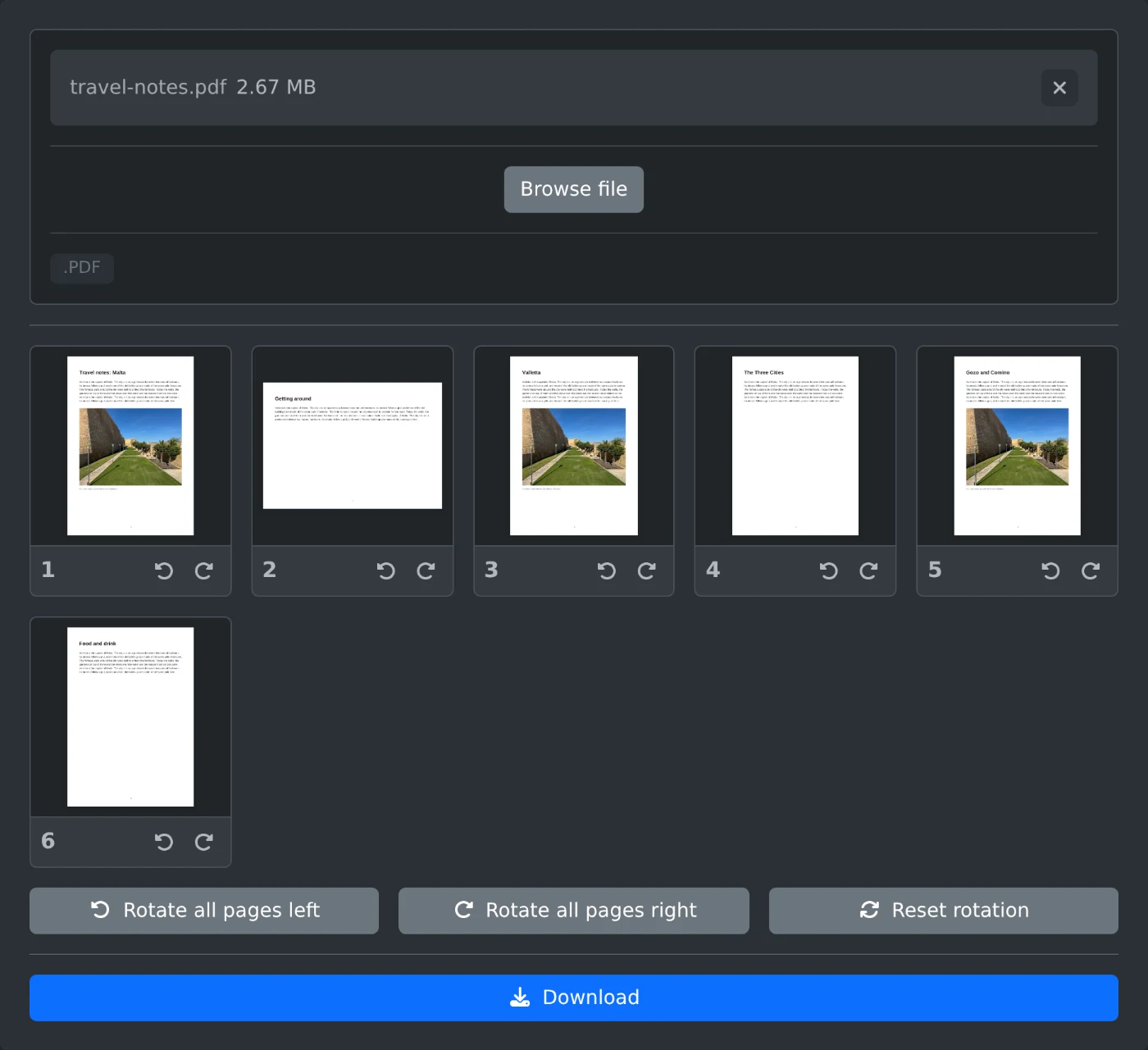
To rotate PDF pages, open the PDF page rotator, upload the file, and click "Rotate left" or "Rotate right" under a page. The thumbnail turns right away. When every page looks right, click Download. The file is rotated in your browser and is never uploaded.
How to rotate the pages
- Drop the PDF onto the upload box, or click "Browse file".
- Wait for the page thumbnails. Click a thumbnail to see the page at full size.
- Click "Rotate left" or "Rotate right" under a page. Each click turns the page by a quarter turn.
- To turn the whole file, click "Rotate all pages left" or "Rotate all pages right".
- Click Download. The file is saved with
-rotatedadded to its name.
How to fix a sideways scan
Scanners often save one page sideways or upside down while the rest are fine. Rotate only that page. Two clicks in the same direction turn a page upside down, and four clicks bring it back to the start. "Reset rotation" undoes every change at once.
Landscape pages in a portrait file
A file with mixed page sizes is normal. A wide table or a chart often sits on a landscape page. Rotate it only if it displays sideways. If it opens the right way up, leave it as it is.
Before you download
- Pages you did not touch stay exactly as they were.
- The original file on your computer is not changed. You get a new file.
Turn the pages, check the thumbnails, and download.
Ready to try it yourself?
PDFページ回転
PDFのページを左右に、1ページずつまたは一括で回転できます。ページのサムネイルで結果を確認してから、回転後のファイルをダウンロードできます。