How to Check JSON-LD Structured Data on a Web Page
Check the JSON-LD on any web page for errors and missing fields, see each schema.org item it describes, and read the JSON of every block.
3 min read
Featured tool
JSON-LDバリデーター
URLを入力すると、サーバーがページを取得し、すべてのJSON-LD構造化データブロックを抽出して、JSON構文エラー、@contextや@typeの欠落、未知のschema.orgタイプやプロパティ、Googleがリッチリザルトに必要とするフィールドをチェックします。
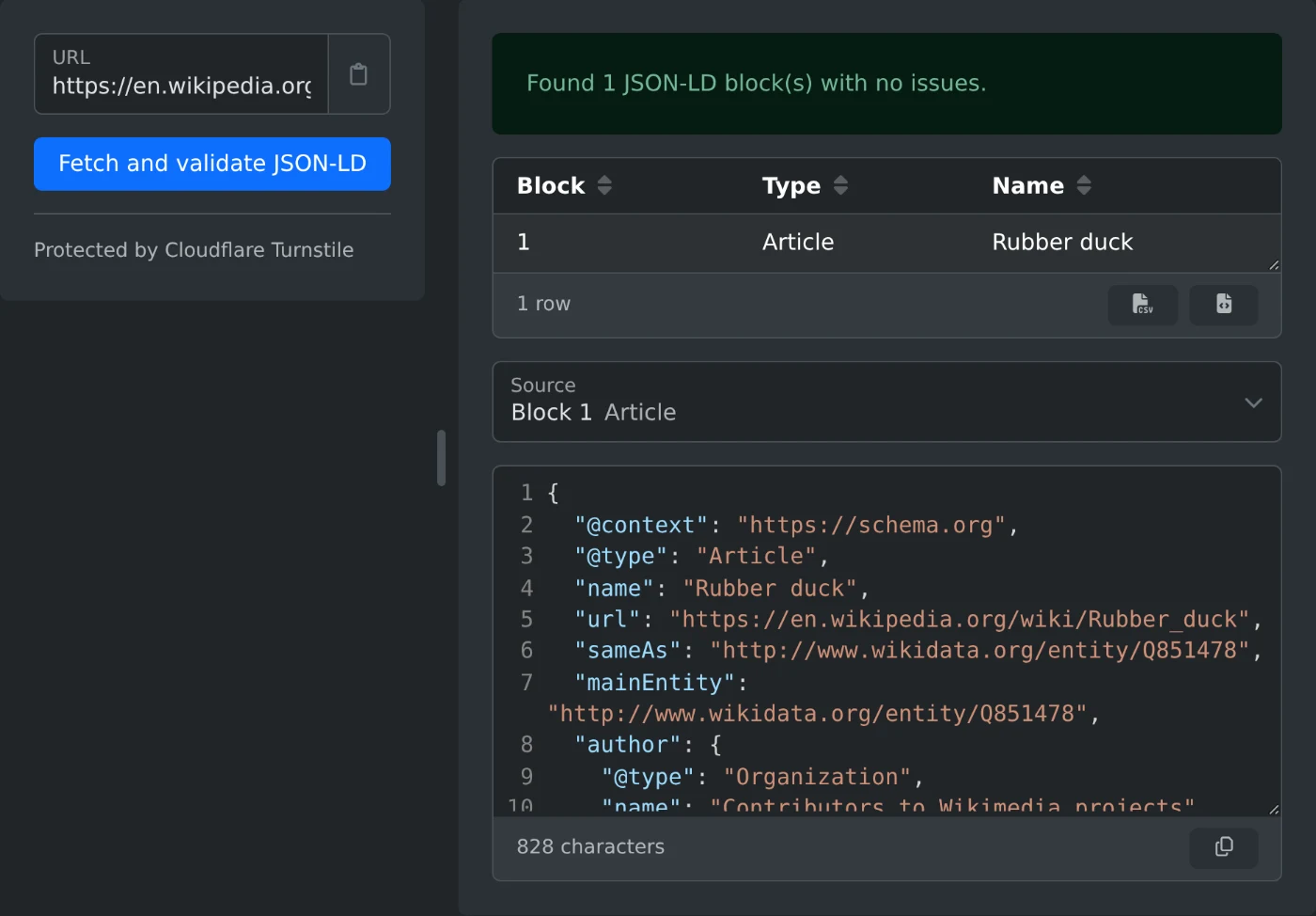
To check the JSON-LD on a web page, open the JSON-LD Validator, paste the page address and click "Fetch and validate JSON-LD". The result lists every problem, every item the page describes, and the JSON of each block. When the page has no problems, the summary is green.
How to check a page
- Open the page in your browser and copy the address from the address bar.
- Paste it into the URL field. If the address has no
https://, it is added for you. - Click "Fetch and validate JSON-LD".
- Read the summary above the tables. It gives the number of blocks, errors and warnings.
- Pick a block under Source to see its JSON with line numbers.
How to read the result
- The problem table lists each error and warning. It appears only when there is a problem.
- Block is the number of the script block, counted from the top of the page.
- Location shows where the problem is, such as
Product.image. - The item table lists each item, with its type, such as Article or Product, and its name.
- Click a column header to sort a table. The buttons under each table export it as CSV or JSON.
Which problems to fix first
Errors come first in the list and have a red label. Warnings have a yellow label. An error means that something is broken, or that a required field is missing. Warnings marked "(optional)" are fields you can add when you have the data.
These messages have simple fixes.
| Message | Fix |
|---|---|
| Invalid JSON | Look for a missing comma or quote, or a comma after the last value. |
Missing @context, add "@context": "https://schema.org" |
Add this line to the block. |
| Missing @type | Add a type, such as "@type": "Product". |
| "@Type" is not a JSON-LD keyword | Write keywords in lower case: @type. |
| Type "Organisation" is not a valid schema.org type | Use the exact schema.org name, here Organization. |
| Required attribute "image" is missing | Add the field named in the message. |
When the check finds nothing or fails
"No JSON-LD script blocks were found on this page" means the HTML of the page has no JSON-LD. The check reads the page as the server sends it. JSON-LD that a script adds later, in the browser, is not found.
"Failed to fetch the page" means the site did not send the page. This also happens when the address redirects to another one, because redirects are not followed. Copy the final address from the address bar and try again.
Only the first 3 MB of a page are checked. A message tells you when a page is larger.
Fix the errors, update the page, and run the check again.
Ready to try it yourself?
JSON-LDバリデーター
URLを入力すると、サーバーがページを取得し、すべてのJSON-LD構造化データブロックを抽出して、JSON構文エラー、@contextや@typeの欠落、未知のschema.orgタイプやプロパティ、Googleがリッチリザルトに必要とするフィールドをチェックします。