How to Compress a Video Without Uploading It
Make a phone video smaller for email, chat or an upload limit. Pick a compression level or type a size in MB, then download an MP4.
2 min read
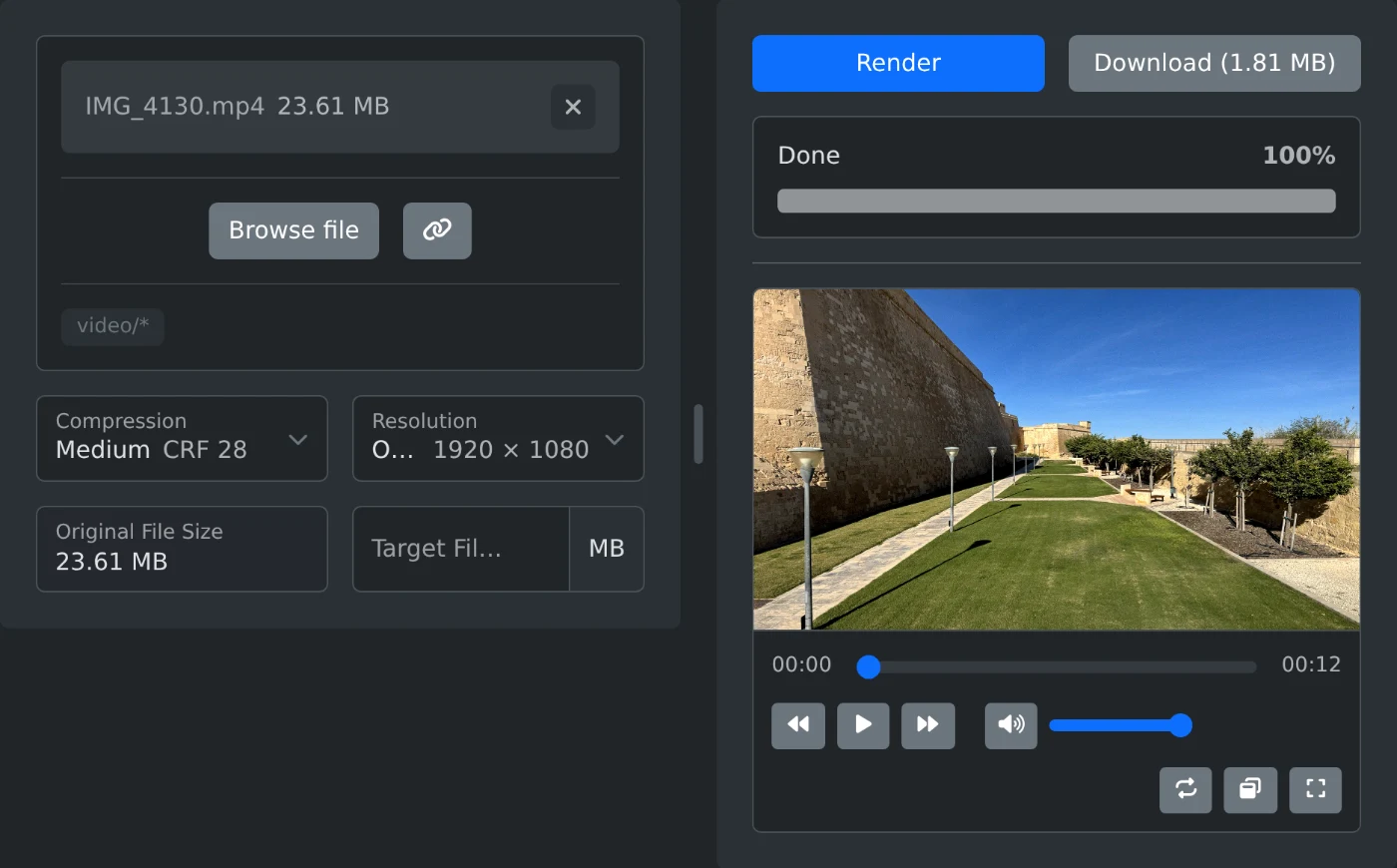
To compress a video, open the video compressor, choose the file and click Render. When the bar says Done, the Download button shows the new size. Click it to save the MP4. The video is compressed in your browser, so it is never uploaded.
The default level is Medium. In the example above, a 12 second 1080p phone video went from 23.61 MB to 1.81 MB.
How to compress the video
- Click "Browse file" and choose the video.
- Leave Compression on Medium, or pick another level.
- Click Render. The bar shows "Loading FFmpeg...", then the progress in percent.
- Check the size on the Download button, then click it.
The file is saved as the original name with -compressed added, for example IMG_4130-compressed.mp4.
Which compression level to pick
- Light: the best picture and the largest file.
- Medium: a good balance for most videos.
- Strong: the smallest file, with a softer picture.
Play the result before you send it. If the picture is too soft, render again with a lighter level.
How to fit a size limit
When a chat app or a form has a limit, type it into "Target File Size" in MB. Compression then switches to "Target file size" by itself. The video is made a little smaller than the number you type, so it fits under the limit.
The target must be smaller than the original file. A very small target for a long video is refused, and a note tells you the smallest size that works.
When to lower the resolution
The Resolution list shows the original size and every smaller size, such as 720p and 480p. Each one shows its width and height next to it. A lower resolution gives a smaller file. Try 720p for a long video that has to be small.
Before you download
- After you change an option, click Render again. The Download button stays off until the new file is ready.
- Keep the tab open while it renders. A long video can take several minutes.
- If the video does not open, the browser cannot read its format. MP4 and WebM files work best.
Pick a level or a size, render, and play the result once before you send it.
Ready to try it yourself?
Videon pakkaustyökalu
Pienennä videotiedostoa valitsemalla pakkaustaso tai tavoitekoko megatavuina. Voit halutessasi myös pienentää sen tarkkuutta. Työkalu tallentaa MP4-tiedoston, joka toimii kaikkialla, suoraan selaimessasi.