How to Compress a PDF File in Your Browser
Make a PDF smaller for email or upload, compare the size before and after, and download the compressed file. Nothing is uploaded.
Featured tool
PDF-pakkaustyökalu
Pienennä PDF-tiedostoa joko kokonaan tai vain valitsemiltasi sivuilta. Suuret kuvat pienennetään ja tallennetaan JPEG-muodossa, mutta teksti pysyy terävänä ja valittavana. Vertaa tiedostokokoja ja lataa pakattu PDF. Toimii selaimessasi.
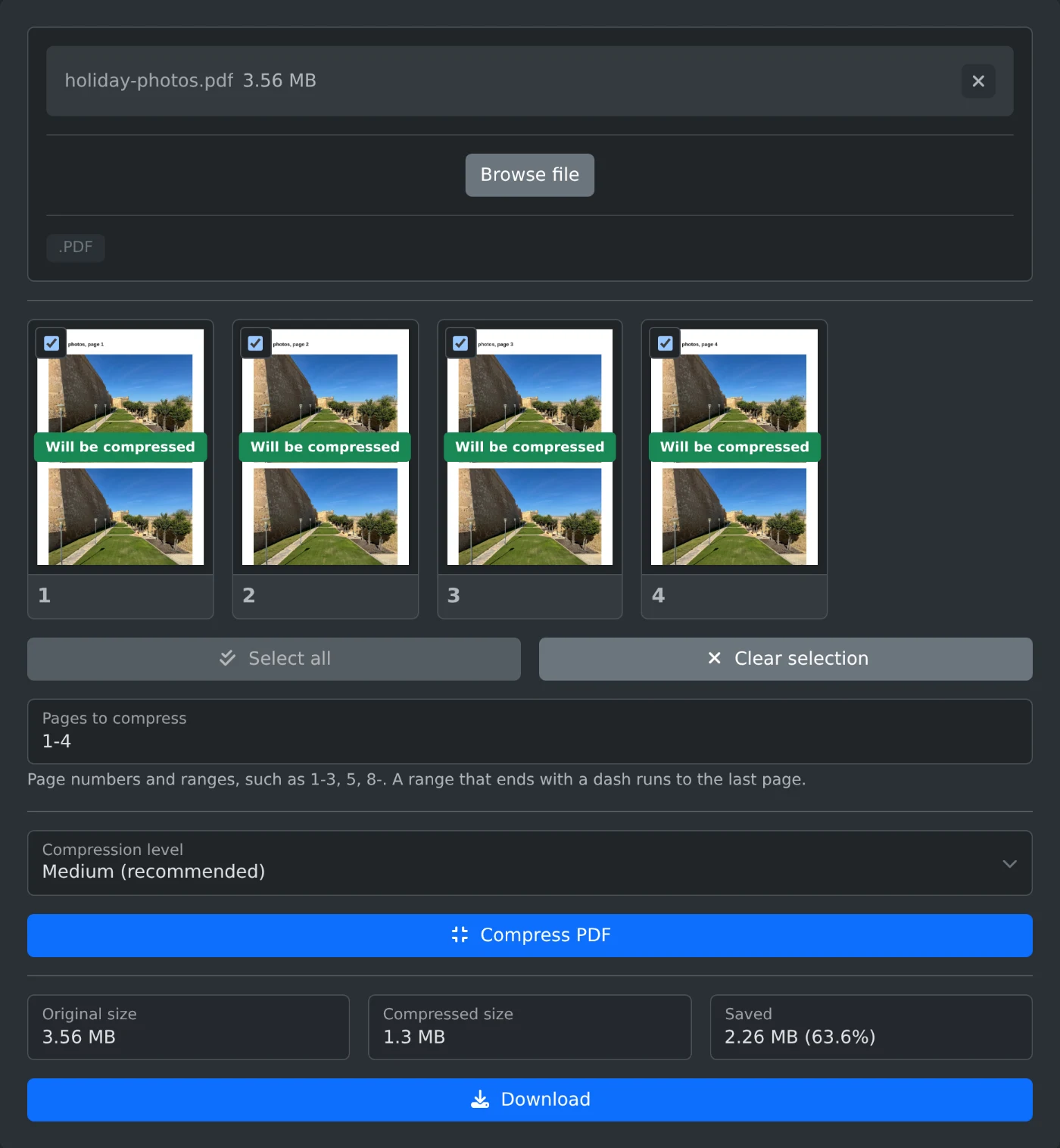
To compress a PDF, open the PDF compressor, upload the file, and click "Compress PDF". The tool shows the original size, the compressed size and how much you saved. If the result is smaller, click Download. The file is compressed in your browser and is never uploaded.
How to compress the file
- Drop the PDF onto the upload box, or click "Browse file".
- Wait for the page thumbnails. All pages are selected, so the whole file will be compressed.
- Pick a Compression level. Medium is the default and works for most files.
- Click "Compress PDF".
- Compare the sizes, then click Download. The file is saved with
-compressedadded to its name.
Which compression level to pick
- Low (best quality): the smallest change to the images. Use it for documents that will be printed.
- Medium (recommended): a good balance for email and uploads.
- High (smallest file): the smallest file, with softer images. Use it when a size limit is strict.
If the compressed file is still too big, try again with a higher level.
What gets smaller
Photos and scanned pages shrink the most. Text and drawings stay sharp and selectable. A PDF that is mostly text has little to gain, and the tool tells you when the compressed file is not smaller than the original. In that case the Download button stays off.
How to compress only some pages
You can leave some pages untouched, for example a cover page with a logo that must stay crisp. Untick the pages you want to keep as they are, or type the pages to compress as numbers and ranges, such as 1-3, 5, 8-. A range that ends with a dash runs to the last page. "Select all" and "Clear selection" reset the choice.
Before you download
- Password protected PDFs cannot be compressed. Remove the password first.
- The thumbnails show the original pages. Open the downloaded file to check the image quality before you delete the original.
Compress, compare the sizes, and download. If the saving is small, the file was already mostly text.
Ready to try it yourself?
PDF-pakkaustyökalu
Pienennä PDF-tiedostoa joko kokonaan tai vain valitsemiltasi sivuilta. Suuret kuvat pienennetään ja tallennetaan JPEG-muodossa, mutta teksti pysyy terävänä ja valittavana. Vertaa tiedostokokoja ja lataa pakattu PDF. Toimii selaimessasi.