How to Move Passwords to Another Password Manager
Convert a password export from 1Password, LastPass, Chrome, KeePass, and others into the format your new password manager imports. Nothing is uploaded.
2 min read
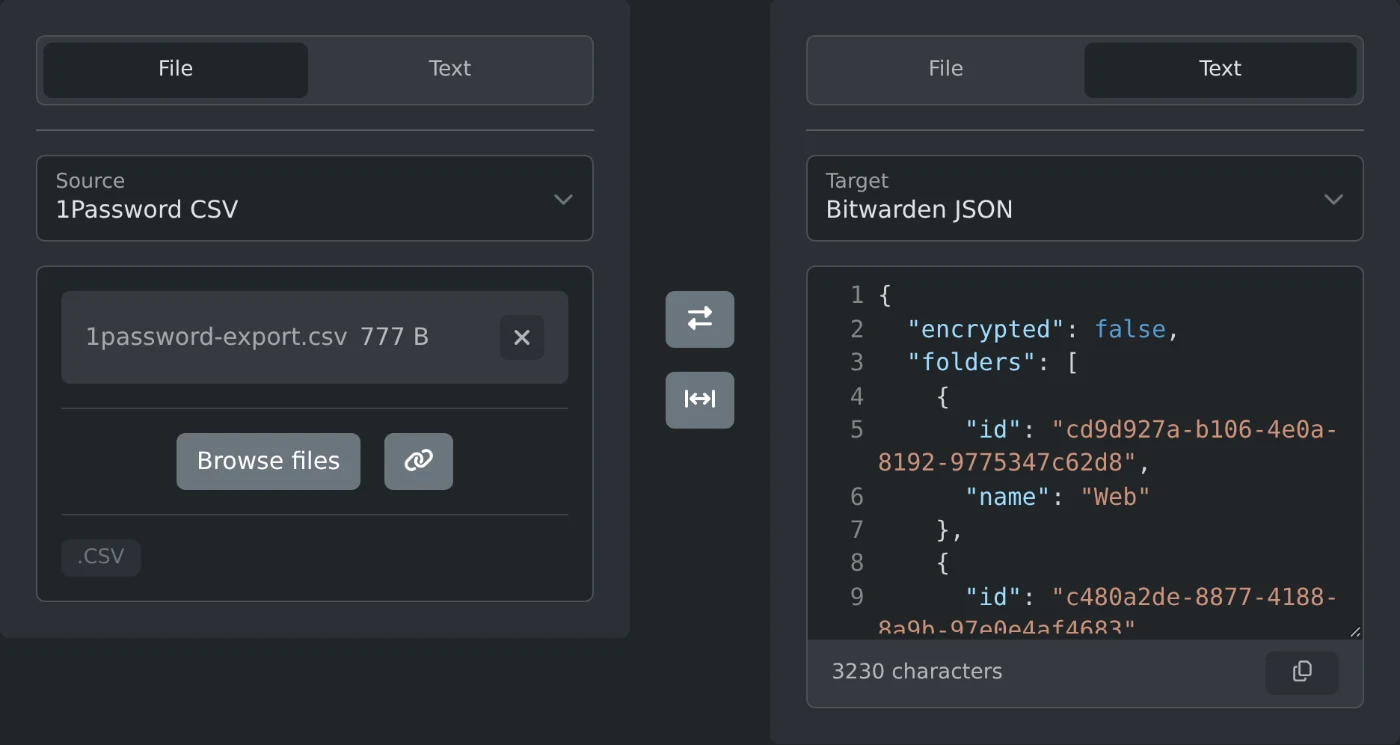
To move your passwords to another password manager, export them from the old one and drop the file on the password manager converter. Pick your new manager under "Target" and download the converted file. Then import that file in the new manager. The export is converted in your browser and is never uploaded.
The converter reads the export by its content. A Chrome CSV converts correctly even when the Source menu says 1Password CSV.
How to convert the export
- Export your passwords from the old manager as a CSV, JSON, XML, or 1PUX file without a password.
- Drop the file in the box under "Source", or click "Browse files".
- Pick the format of your new manager under "Target".
- Click "Download" next to the converted file. It keeps its name with the new extension, such as
1password-export.json. - Import the file in your new manager.
Example: 1Password to Bitwarden
The converter starts on 1Password CSV to Bitwarden JSON. This row of a 1Password CSV export:
Title,Url,Username,Password,OTPAuth,Favorite,Archived,Tags,Notes
Internet Archive,https://archive.org/account/login,alice.martin@example.org,q9V!rT3kXe7sLb,otpauth://totp/Internet%20Archive?secret=JBSWY3DPEHPK3PXP,false,false,Web,Backup codes are in the safe.
becomes this Bitwarden JSON:
{
  "encrypted": false,
  "folders": [
    {
      "id": "b87b4802-7dc2-43e5-aad1-11a0c687e8e0",
      "name": "Web"
    }
  ],
  "items": [
    {
      "type": 1,
      "name": "Internet Archive",
      "notes": "Backup codes are in the safe.",
      "folderId": "b87b4802-7dc2-43e5-aad1-11a0c687e8e0",
      "favorite": false,
      "reprompt": 0,
      "fields": [],
      "login": {
        "uris": [
          {
            "match": null,
            "uri": "https://archive.org/account/login"
          }
        ],
        "username": "alice.martin@example.org",
        "password": "q9V!rT3kXe7sLb",
        "totp": "otpauth://totp/Internet%20Archive?secret=JBSWY3DPEHPK3PXP"
      },
      "collectionIds": null
    }
  ]
}
The 1Password tag becomes a Bitwarden folder. The one time password goes to the TOTP field, and the notes stay notes. The folder id is new each time you convert.
Which target to pick
- Bitwarden: Bitwarden JSON. It keeps folders and custom fields.
- Google Password Manager, Chrome, Edge, or Brave: Chrome CSV.
- Apple Passwords, Safari, or iCloud Keychain: Apple Passwords CSV.
- KeePass: KeePass XML.
- KeePassXC: KeePassXC CSV.
- LastPass, 1Password, Dashlane, Proton Pass, NordPass, Keeper, RoboForm, or Firefox: the CSV with that name.
1Password 1PUX and Enpass JSON work as the source only.
What does not move
- Attachments, passkeys, and password history are not in the converted file.
- Firefox CSV keeps only the website, username, and password.
- Chrome, NordPass, and RoboForm have no field for one time passwords, so they go into the notes.
- Custom fields become lines in the notes, except in Bitwarden, KeePass XML, NordPass, and Keeper.
- An export protected by a password, such as an encrypted Bitwarden JSON file, shows an error. Export it again without a password.
Delete the files after the import
Both the export and the converted file hold every password as plain text. Delete them after the import, and empty the trash.
Export, convert, import, and then delete both files.
Ready to try it yourself?
محول مديري كلمات المرور
حوّل ملفات تصدير كلمات المرور بين صيغ 1Password وBitwarden وLastPass وKeePass وChrome وFirefox وApple Passwords وDashlane وProton Pass وNordPass وKeeper وRoboForm وEnpass مباشرة في متصفحك دون رفع أي شيء.