How to Extract Attachments from an MBOX File
Get the photos, PDFs, and documents out of a Gmail Takeout or Thunderbird mailbox without importing it into a mail client.
Featured tool
Извлечение вложений из Mbox
Извлекайте вложения из файлов почтовых ящиков MBOX и скачивайте их по отдельности или в виде ZIP-архива.
You don't need a mail client for this
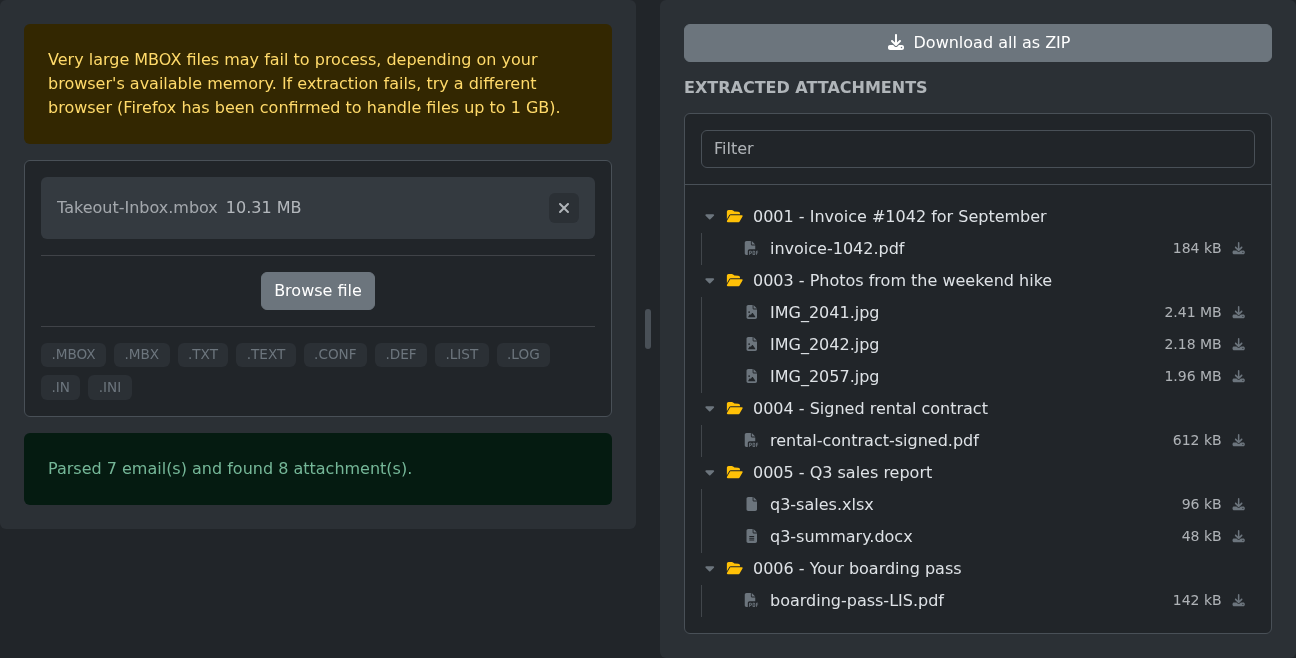
Drop the file onto the MBOX attachments extractor and it lists every attachment from every email, grouped by message. Download files one by one with the icon next to each, or click "Download all as ZIP" to get everything at once. The mailbox is read in your browser and never uploaded anywhere.
Importing the mailbox into a mail client also works, but then you're opening emails one at a time and saving each file by hand.
Finding the right file
- Google Takeout gives you Gmail as a single file, usually called
All mail Including Spam and Trash.mbox. - Thunderbird stores each local folder as an MBOX file with no extension, like
InboxorSent, inside theMailorImapMailfolder of your profile. Skip the.msffile next to it, that's only an index.
The file picker may hide Thunderbird's files because they have no extension. Drag the file onto the tool instead, that accepts anything.
How the results are organized
Each email with attachments becomes a folder named after its position in the mailbox and its subject, like 0003 - Photos from the weekend hike. Emails without attachments are left out, which is why the numbers have gaps. If one email has two files with the same name, the second one becomes name (2).ext.
The ZIP keeps the same folders, so after unzipping you can still tell which email each file came from.
Expect some extras
Every file inside an email counts, including ones nobody really meant to send. Logos from email signatures, images pasted into the message body, and calendar invites show up next to the real attachments.
Type into the Filter box to get past them. .pdf shows only PDFs, and a word from a subject line shows that email's files.
Big mailboxes
The whole file has to fit in your browser's memory, and a full Gmail export can run to several gigabytes. Firefox has been confirmed to handle files up to 1 GB. For anything bigger, go back to Takeout, click "All Mail data included" under Mail, and pick only the labels you need.
Don't be surprised if the attachments add up to less than the file size. Email stores attachments as base64 text, which makes each file about a third bigger inside the mailbox. A 10 MB MBOX full of photos gives you roughly 7.5 MB of actual files.
Ready to try it yourself?
Извлечение вложений из Mbox
Извлекайте вложения из файлов почтовых ящиков MBOX и скачивайте их по отдельности или в виде ZIP-архива.