
How to Create Chrome Web Store Screenshots for Your Extension
Make store listing images for your Chrome extension with a headline, a clean background, and the right size, without any design software.
2 min read
Create professional Chrome Web Store screenshots with browser frames, promotional text, and branded backgrounds for extension listings
Chrome Web Store screenshots are the first visual impression potential users get when browsing extension listings. Google allows up to five promotional images at a recommended resolution of 1280×800 pixels. Well-designed screenshots with clear headlines, branded colors, and device mockups can significantly increase install rates by showing users what the extension does before they commit to downloading it. Many successful extensions use annotated screenshots - combining actual UI captures with promotional text and polished backgrounds - rather than raw screenshots alone.
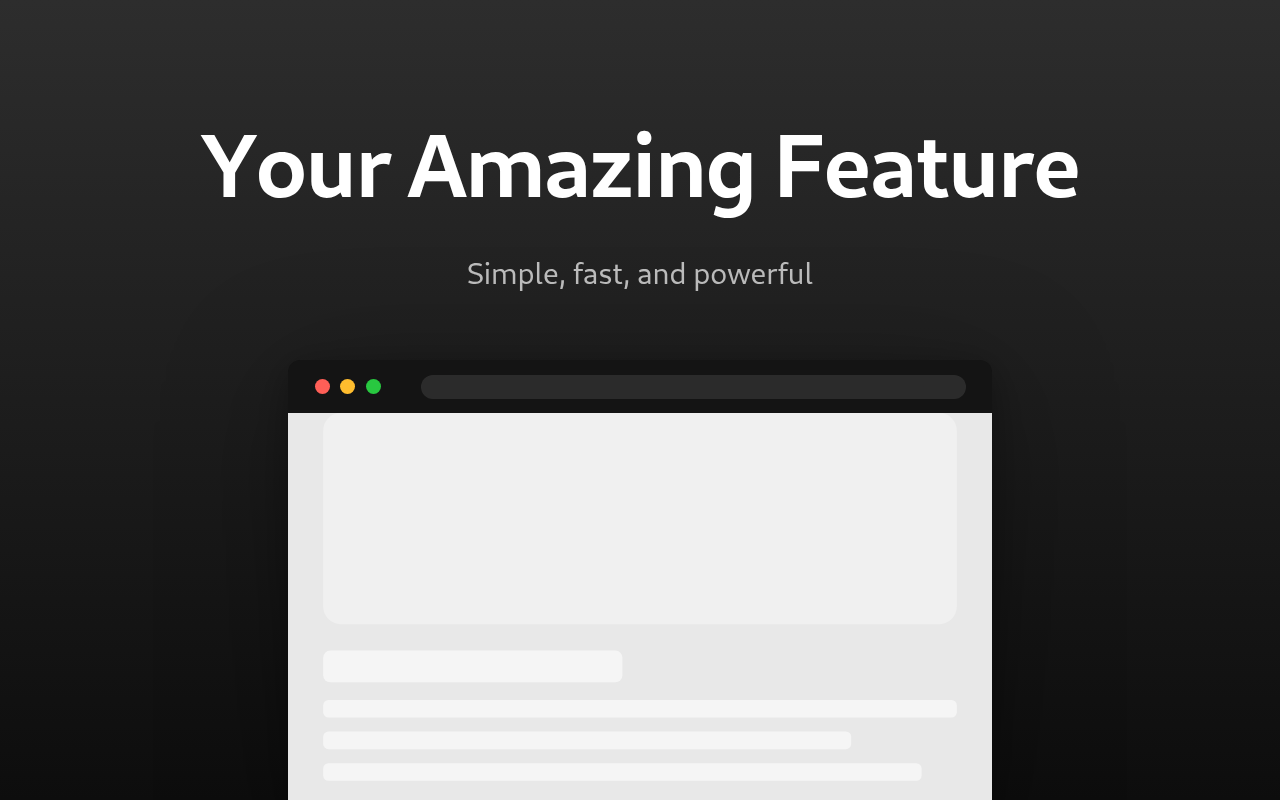
This tool lets you create professional, ready-to-upload promotional screenshots for Chrome Web Store listings without any design software. Upload a screenshot of your extension, add a headline and subtitle, choose a layout template, and customize the background, typography, and device frame. The result is a pixel-perfect image that meets Chrome Web Store size requirements and can be downloaded as PNG or JPEG.
| Option | Description |
|---|---|
| Output Size | Predefined sizes (1280×800, 1280×720, 1920×1080) or custom width and height |
| Template Layout | Quick presets that arrange text and image: top/bottom or left/right splits |
| Device Frame | Wrap the screenshot in a browser frame or display it without a frame |
| Text Positioning | Control vertical and horizontal placement of the headline and subtitle, plus pixel offsets |
| Image Positioning | Control vertical and horizontal placement of the screenshot, plus pixel offsets |
| Screenshot Scale | Resize the screenshot from 30% to 100% of the available area |
| Background Type | Solid single color or a linear gradient between two colors |
| Gradient Direction | Six directions including vertical, horizontal, and diagonal |
| Font | Eight font families including System UI, Arial, Georgia, and monospace options |
| Font Weight | Six weights from Regular (400) to Black (900) |
| Headline / Subtitle Font Size | Independent size sliders for the headline (24-160 px) and subtitle (16-100 px) |
| Subtitle Opacity | Control how prominent the subtitle appears (20-100%) |
| Frame Color | Set the browser frame color when the browser device frame is selected |
| Show Shadow | Toggle a drop shadow behind the screenshot or device frame |
| Round Corners | Add rounded corners to the screenshot when no device frame is used |
| Output Format | Export as PNG (lossless) or JPEG (smaller file size) |
Make store listing images for your Chrome extension with a headline, a clean background, and the right size, without any design software.
2 min read