How to Delete Pages from a PDF
Remove single pages or page ranges from a PDF in your browser, check the selection on the thumbnails, and download the file without them.
Featured tool
Removedor de páginas PDF
Remova páginas específicas de um PDF. Marque-as nas miniaturas das páginas ou digite números e intervalos de páginas e baixe o arquivo sem elas.
To delete pages from a PDF, open the PDF page remover, upload the file, and tick the pages you want to remove. Then click Download. The new file has all the other pages in their original order. The file is read in your browser and is never uploaded.
How to remove the pages
- Drop the PDF onto the upload box, or click "Browse file".
- Wait for the page thumbnails. Click a thumbnail to see the page at full size.
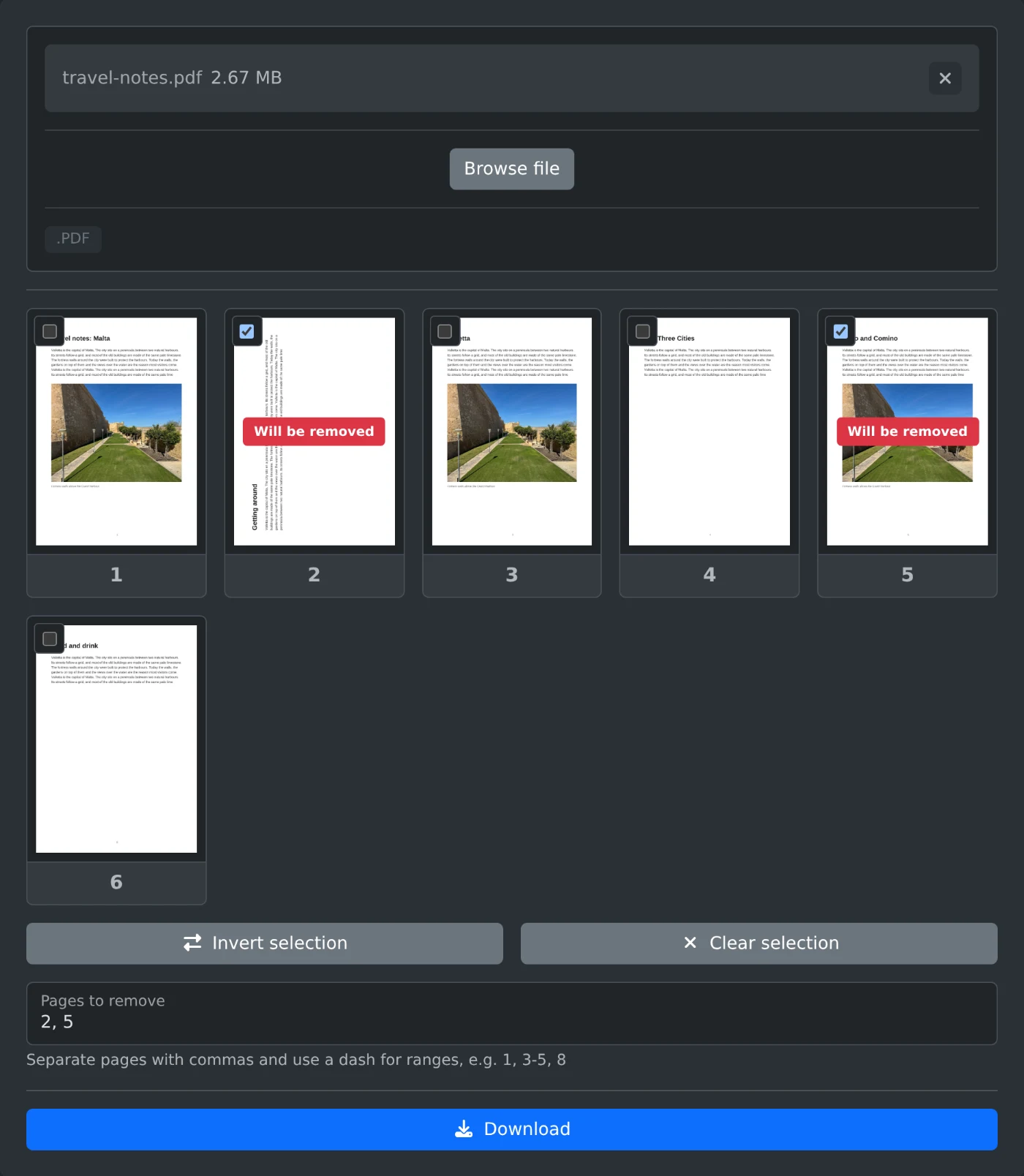
- Tick the pages to remove. Each ticked page shows "Will be removed".
- Check the thumbnails once more.
- Click Download. The file is saved with
-pages-removedadded to its name.
How to type the pages instead
For a long document, typing is faster than ticking. Type the page numbers into "Pages to remove", separated by commas, and use a dash for a range: 1, 3-5, 8. A range without an end runs to the last page, so 8- removes page 8 and everything after it, and -3 removes the first three pages. The thumbnails update as you type, so you can see that you picked the right pages.
How to keep only a few pages
To keep only pages 2 and 7 of a long file, type 2, 7 and click "Invert selection". Now every other page is marked, and the download contains only the two pages you typed. "Clear selection" removes all marks.
Before you download
- At least one page has to remain, so you cannot remove every page.
- The original file on your computer is not changed. You get a new file.
Open the downloaded file and page through it once before you delete the original.
Ready to try it yourself?
Removedor de páginas PDF
Remova páginas específicas de um PDF. Marque-as nas miniaturas das páginas ou digite números e intervalos de páginas e baixe o arquivo sem elas.