How to Rotate PDF Pages
Turn sideways or upside down PDF pages upright in your browser, one page or all of them, and download the fixed file.
Featured tool
PDF-siderotering
Roter PDF-sider mot venstre eller høyre, én om gangen eller alle samtidig. Kontroller resultatet i sideminiatyrene, og last deretter ned den roterte filen.
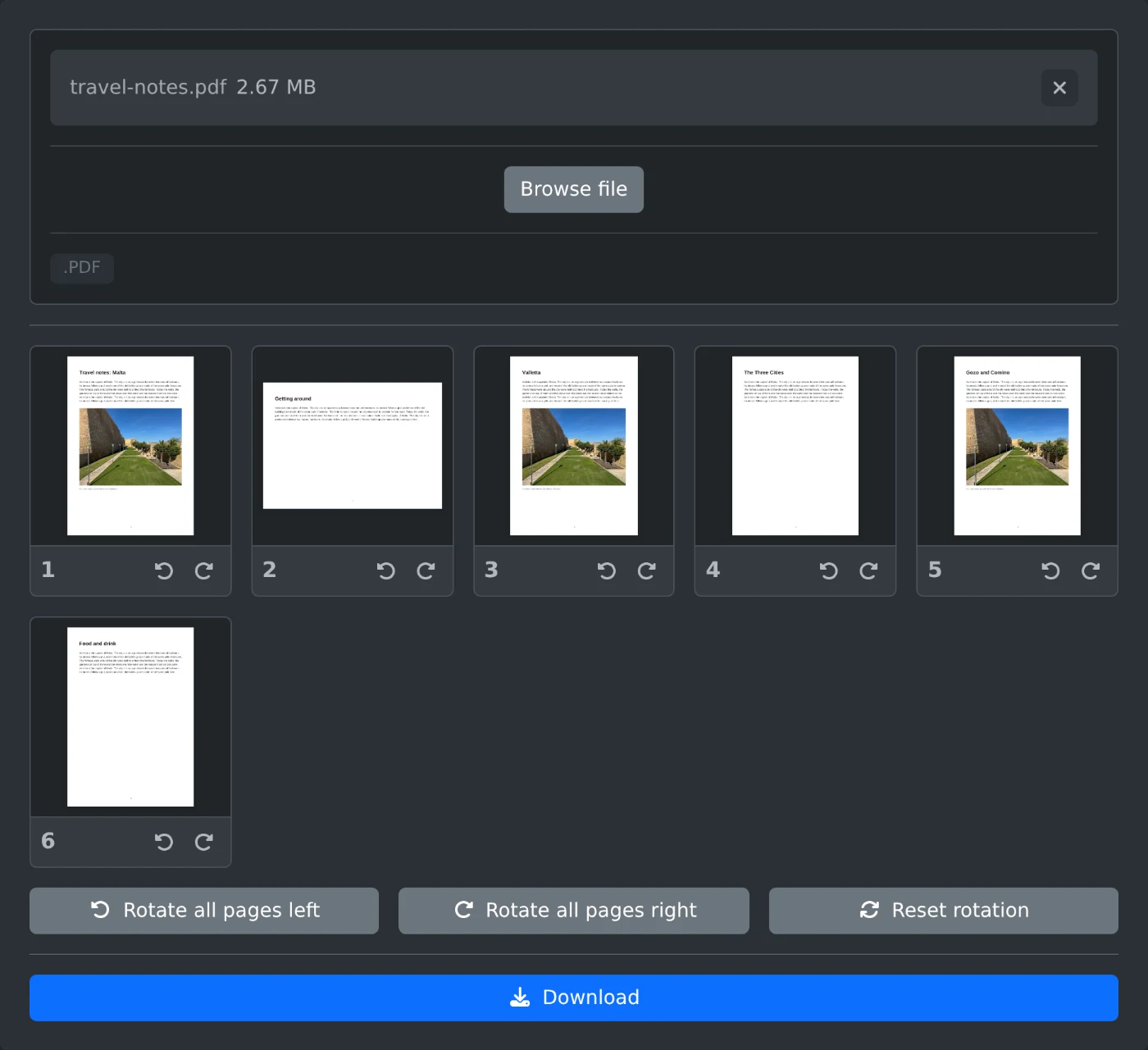
To rotate PDF pages, open the PDF page rotator, upload the file, and click "Rotate left" or "Rotate right" under a page. The thumbnail turns right away. When every page looks right, click Download. The file is rotated in your browser and is never uploaded.
How to rotate the pages
- Drop the PDF onto the upload box, or click "Browse file".
- Wait for the page thumbnails. Click a thumbnail to see the page at full size.
- Click "Rotate left" or "Rotate right" under a page. Each click turns the page by a quarter turn.
- To turn the whole file, click "Rotate all pages left" or "Rotate all pages right".
- Click Download. The file is saved with
-rotatedadded to its name.
How to fix a sideways scan
Scanners often save one page sideways or upside down while the rest are fine. Rotate only that page. Two clicks in the same direction turn a page upside down, and four clicks bring it back to the start. "Reset rotation" undoes every change at once.
Landscape pages in a portrait file
A file with mixed page sizes is normal. A wide table or a chart often sits on a landscape page. Rotate it only if it displays sideways. If it opens the right way up, leave it as it is.
Before you download
- Pages you did not touch stay exactly as they were.
- The original file on your computer is not changed. You get a new file.
Turn the pages, check the thumbnails, and download.
Ready to try it yourself?
PDF-siderotering
Roter PDF-sider mot venstre eller høyre, én om gangen eller alle samtidig. Kontroller resultatet i sideminiatyrene, og last deretter ned den roterte filen.